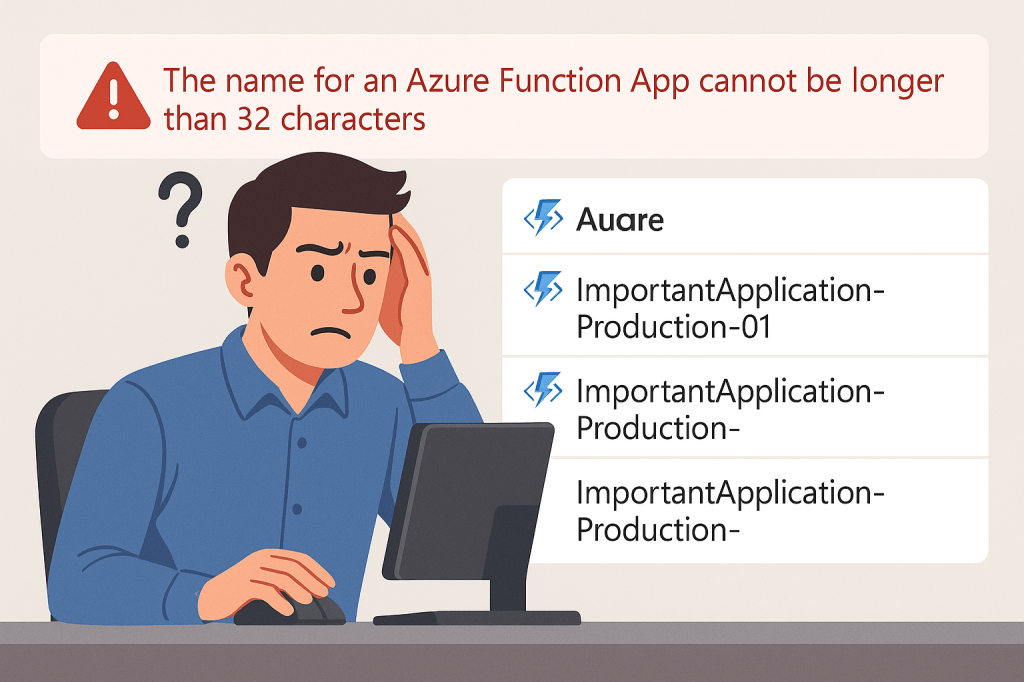
I recently learned that the name for an Azure Function App cannot be longer than 32 characters. Unfortunately, I learned this the hard way by spending about 24 hours trying to work out what was going on. What makes it worse is that Microsoft does document this here, albeit in a note towards the end of the page.
So, what happens if you name a Function App longer than 32 characters? The name gets truncated in the back end, and back-end services like storage use the truncated name.
Let’s take an example, I have four Function Apps with the following names:
The 32nd character in each of these names is the ‘-‘ near the end. This means every one of these gets truncated to “ImportantApplication-Production-” which means they lose the identifying number at the end, and all appear with the same name.
This causes all sorts of problems, particularly around accessing resources in storage accounts (assuming they are all using a shared storage account). I saw my apps failing to pick up messages from a storage queue, and managed dependencies seemed to take an incredibly long time to download or would stop part way and then try again after 5-10 minutes.
Sometimes it may be necessary to migrate Azure virtual machines between subscriptions or tenants, for example if you are splitting resources to set up more granular permissions or buying/selling parts of your business.
Microsoft has a built-in move system for many resources in Azure, which does include virtual machines. However, with virtual machines it comes with a few caveats; you can only migrate VMs between different subscriptions in the same tenant, and you must migrate all dependant resources at the same time. For a virtual machine this means that you must also migrate the virtual network and network security group (if you have one) that the virtual machine is attached to. But migrating a virtual network means you must migrate every other virtual machine that is attached to it at the same time, which may be inconvenient or simply not needed. Because of these caveats we need to look at alternative ways to migrate Azure virtual machines.
The way I migrate Azure virtual machines is by following these steps:
(If migrating to a different subscription in the same tenant) Create a snapshot of the virtual machine OS and data disks in the new subscription and then convert the snapshot to a disk
(If migrating to a different tenant) Export the virtual machine OS and data disks to a VHD which you download and then upload in the new tenant
Create a new virtual machine with the same size and image as the source virtual machine, and put it in the new resource group and virtual network when you get to that part of the creation process
When the new virtual machine is created, immediately stop it and swap out the OS disk to the one you migrated over
Reconfigure anything you need to in the virtual machine, test it and then tidy up by deleting the leftover snapshot and the source virtual machine
This method also has the advantage that the source virtual machine will remain in place until you have completed the migration, so if something goes wrong you can always fall-back to the existing virtual machine.
Ensure you have an account that you can use to log on to the virtual machine that does not rely on something like Active Directory, as this may not be available immediately after you complete the migration. In my case these are Windows virtual machines so I will ensure that there is a local admin user account available.
Before stopping the virtual machine, you also need to turn off Azure Disk Encryption (if you have it turned on) on both the OS disk and data disk. To do this follow these steps:
Using PowerShell, connect to your Azure tenant using:
Connect-AzAccount
If you have multiple subscriptions, use the following command to select the same subscription that your virtual machine is in (replacing the values between the pointy brackets with the correct values for you):
Set-AzContext -Subscription "<subscription name"
Now run the following command to get the current encryption status of the virtual machine you plan to migrate (replacing the values between the pointy brackets with the correct values for you):
Get-AzVMDiskEncryptionStatus -ResourceGroupName "<resource group name>" -VMName "<virtual machine name>"
If the value of either OsVolumeEncrypted or DataVolumesEncrypted is Encrypted, you will need to run this command to disable the encryption before you can create a snapshot or export the disk (replacing the values between the pointy brackets with the correct values for you):
Disable-AzVMDiskEncryption -ResourceGroupName "<resource group name>" -VMName "<virtual machine name>" -VolumeType All
That can take a few minutes to complete. Once it has completed, stop and virtual machine so that its status shows as “Stopped (deallocated)”.
Create a copy of the virtual machine disk(s) in the new subscription (same tenant)
Note: If you are moving the virtual machine to a new tenant, skip down to the next section.
If you are moving the virtual machine to a different subscription in the same tenant, the process of copying the disk to the new subscription is quick.
Go to the virtual machine in your Azure portal and click on Settings -> Disks. In the OS disk section, click on the disk and then click Create snapshot. In the first page of settings, select the new subscription name and the new resource group name (or create a new resource group here if needed).
Most of the rest of the page will be greyed out now, which is fine. You can select the storage type if you want, but Standard HDD is enough for this.
Complete the rest of the process for creating the snapshot and once validation has passed, click Create.
Once the deployment has completed, click Go to resource and from here you can click Create disk. This time the subscription and resource group should default to the same ones you selected for the snapshot (but always worth double checking), so give the disk a name and select the availability zone if needed. You can also change the size of the disk, however by default it will select the same size that the original disk used.
Continue through the rest of the process, setting the options you want in the Encryption page, the Networking page and so on until you get to the Review + create page. Once validation is done, click Create.
Once the disk creation has completed, you can delete the snapshot. Go to the Resource group and find the snapshot in the list of resources. Select it and click Delete, confirm you selected the right resource and confirm the deletion.
The OS disk is now ready to be attached to a new virtual machine. If this virtual machine has any data disks, you should repeat this process for the data disks. Once you are done head down to the Create new virtual machine section of this guide.
Create a copy of the virtual machine disk(s) in the new tenant
Note: If you are moving the virtual machine to a different subscription in the same tenant, you should follow the steps in the previous section and skip this one.
Copying the virtual machine to a new tenant is a slightly more complicated process than moving it between different subscription in the same tenant, but still not too bad.
Go to the virtual machine in your Azure portal and click on Settings -> Disks. In the OS disk section, click on the disk and then click on Disk Export which you can find in Settings on the left.
Note: If you have “Disable public and private access” set under Networking you will not be able to export the disk. As a temporary measure, set this to “Enable public access from all networks” while you go through this process to export the disk.
Click “Generate URLs” and wait for the links to be created. Once they are, click “Download the VHD file”. Now wait for the download to complete.
Once it has completed you need to upload it to the new tenant and new resource group (which you will need to create now if you haven’t already). The easiest way to do this is with PowerShell. If you connected earlier, disconnect from the tenant where the virtual machine currently resides using:
Disconnect-AzAccount
And reconnect to the new tenant using:
Connect-AzAccount
If you have multiple subscriptions, use the following command to select the subscription that you are migrating the virtual machine to (replacing the values between the pointy brackets with the correct values for you):
Set-AzContext -Subscription "<subscription name>"
Now run the following command to upload the VHD to the new tenant and resource group (replacing the values between the pointy brackets with the correct values for you):
Add-AzVhd -LocalFilePath "<path you downloaded VHD to>" -ResourceGroupName "<resource group name>" -Location "<your preferred Azure region>" -DiskName "<vm disk name of your choosing>" -DiskHyperVGeneration V2
Note: For the DiskHyperVGeneration switch this needs to match the virtual machine generation you intend to create when you migrate. Most likely this will be V2 unless you have specific reasons to remain with a V1 virtual machine.
The OS disk is now ready to be attached to a new virtual machine. If this virtual machine has any data disks, you should repeat this process for the data disks.
Create new virtual machine
In this guide I suggest you create a new virtual machine rather than creating the virtual machine from disk. This is because if you create a virtual machine from the disk, this is considered a “specialised image”, and it does not fill in the osProfile (see this issue on GitHub). You are not able to update the osProfile manually as the attributes are read only (in contradiction to an article from Microsoft which suggests that you can update certain attributes such as AllowExtensionOperations). However, virtual machines created from one of the Azure provided images is considered a “generalised image” and will have osProfile filled in as appropriate.
This may or may not matter to you, but to cover all bases I think it is best to create a new virtual machine so that the osProfile is correctly filled in.
In your Azure portal, go to Virtual Machines and click Create. Select the same subscription and Resource group that your migrated disk is in, give the virtual machine a name and select the region you want. In the Image selection box, select the same image that you did for the original virtual machine. This will ensure that the osProfile properties of this virtual machine get filled in correctly.
In the Security type drop down you need to select Standard at this point. If you set it to Trusted launch, you will not be able to attach the migrated disk after the virtual machine has been created. Once the migrated disk has been attached, you will be able to change the security type to Trusted launch if you want.
Select the appropriate size for the virtual machine and give it a username and password for the administrator account. You should ensure that the username you specify here is the same as the one in the virtual machine you are migrating over, as this gets stored in the osProfile.
In the Disks page, you can select any option here because the disk that is created during this creation wizard only last a few minutes. This is because you will be swapping it out with the one you migrated shortly after the virtual machine creation is complete. Don’t forget to tick Encryption at host if this is something you use (doing this will also re-enable it if you needed to disable it before copying the disk).
Complete the virtual machine creation process by selecting what you need from the remaining pages. Once the validation has passed, click Create.
When the deployment has finished, you can go to the resource. You will see that the virtual machine has started automatically, so stop it and wait for it to show as “Stopped (deallocated)”. Once this is done, go to Settings -> Disks and click on Swap OS disk. You will be presented with a drop down where you can select the disk you want to swap in, so find the disk you migrated over and select it.
Confirm your selection by entering the name of the virtual machine and click OK. Once the swap is complete, you can attach any data disks from the original virtual machine that you migrated over. From the same Disks screen, click Attach existing disks and select the disk name from the drop-down menu.
When creating the virtual machine, I mentioned that you had to set the Security type to Standard at that point in the process. If you do actually want to use Trusted launch, go to the Settings -> Configuration page and, under Security type select Trusted launch virtual machines.
Once that is all done, you can go back to the virtual machine Overview and start the virtual machine again. While you wait for it to start, you can delete the unused disk that was created when you created this virtual machine. Click on the Resource group to see all resources that are in it, select the unused disk and click Delete. Be careful not to select the wrong disk! Thankfully Azure will not let you delete a disk if it is attached to any virtual machine.
And that is it! Once you have done some testing and are happy the migration has been successful, you can also delete the virtual machine (and its disks and interfaces) in the original tenant / subscription to fully complete the process.
Deploying updated code to an Azure Function App can be done through a variety of methods, and one of those methods is by uploading a zip file to the Function App via the Kudu REST API.
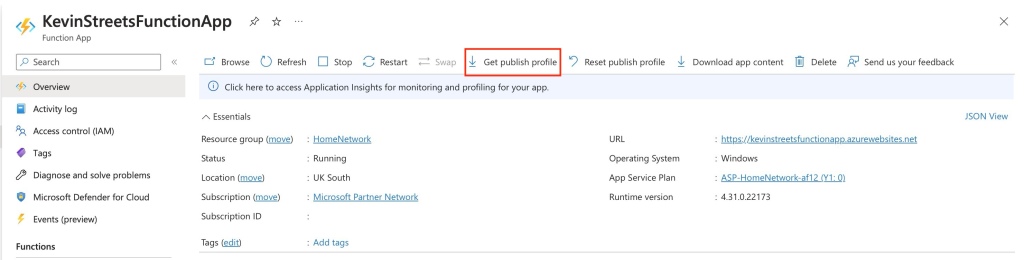
To start, go to your Function App in the Azure Portal and download the publish profile. This contains the ZipDeploy URL and the username and password that will be needed. You can do this from the Overview page of the Function App:
Download the publish profile for your Function App
This will download an xml file that contains a few different publish profiles that you can use. In this case, look for the ZipDeploy profile and take note of the publishURL, userName and userPWD. The URL will take the form of FunctionAppName.scm.azurewebsites.net, the username will be $FunctionAppName and the password will be a long, randomised string.
The ZipDeploy publish profile
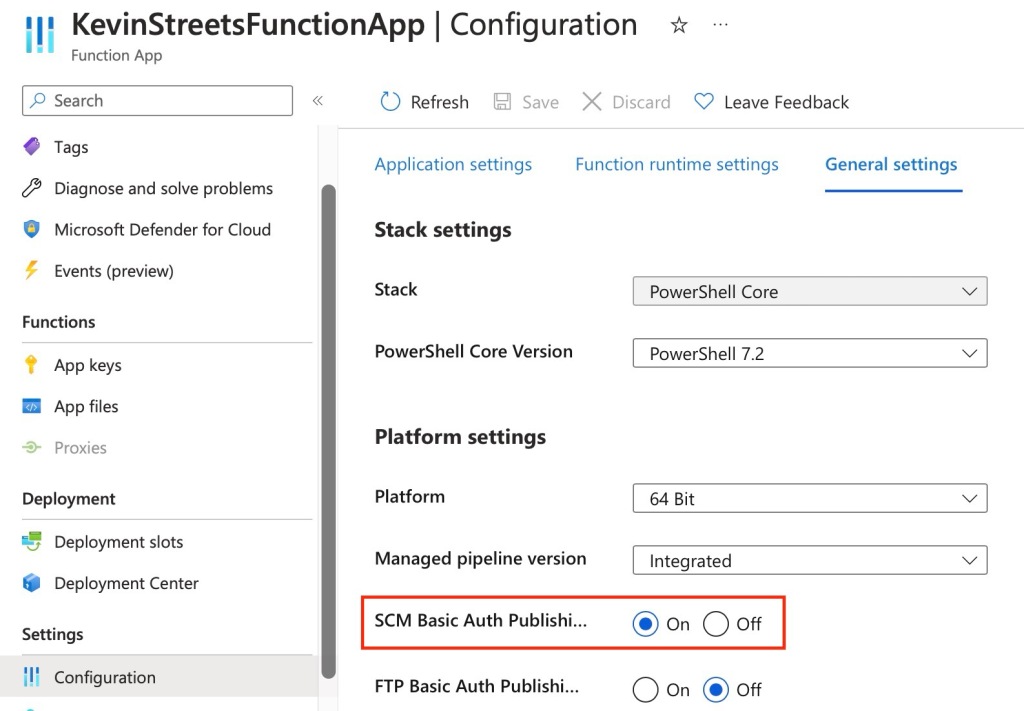
Next you will need to make sure that SCM Basic Auth Publishing Credentials are enabled in the General Settings for your Function App. This can be found under Settings > Configuration > General Settings:
Enable SCM Basic Auth Publishing Credentials
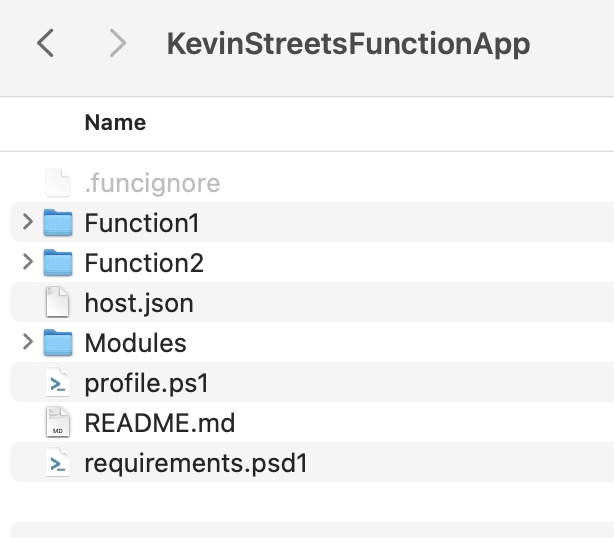
With this done let’s start coding the deployment, starting with the creation of the zip file. The root directory that you zip should contain the files that you want in the wwwroot folder of your Function App. Typically this will include your functions, a Modules folder, and a host.json file (and perhaps other files depending on the scripting language you selected for your Function App).
Let’s also say you have a .funcignore file that has a list of files or folders that are in the folder structure of the Function App but should not be included in the deployment.
So, your Function App source folder might look something like this:
Now that the zip file has been created it is time to deploy it. Start by defining some variables with the publishURL, userName and userPWD you noted down earlier. Also, update the publishURL to include the correct API and include “isAsync=true” which will immediately return a response that you can use to monitor the deployment status.
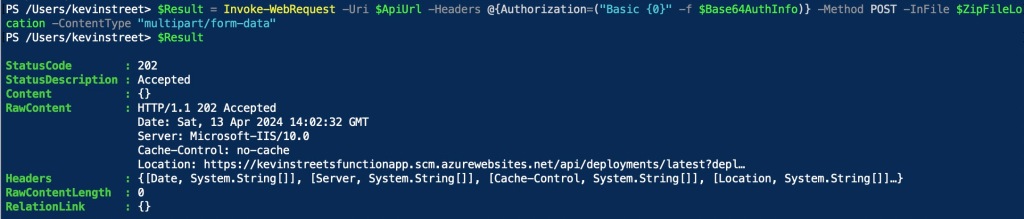
As mentioned above, this should return immediately, and you can this by checking the content of the $Result variable. If all has gone well, you will get a StatusCode 202 meaning it has been accepted.
Deployment has been accepted
As previously mentioned, you can now monitor the status of the deployment. The URL you use to monitor the deployment is contained in the Headers in the return of the previous request. You can view it by looking in $Result.Headers.Location:
$Result.Headers.Location
To query the status of the deployment, run the following command:
This will likely return one of two statuses: InProgress or Succeeded. In my experience it takes very little time to complete the deployment. I like to create a small loop that checks the status every 5 seconds until the status is completed:
do {
    $Complete = Invoke-WebRequest -Uri $($Result.Headers.Location) -Headers @{Authorization=("Basic {0}" -f $Base64AuthInfo)} -Method GET
    Write-Host -Object "Current deployment progress: $(($Complete.Content | ConvertFrom-Json).provisioningState)"
    if ($(($Complete.Content | ConvertFrom-Json).provisioningState) -ne "Succeeded") {
        Start-Sleep -Seconds 5
    }
}
until ($(($Complete.Content | ConvertFrom-Json).provisioningState) -eq "Succeeded")
This gives me a nice output that shows when my deployment has completed:
Monitoring status of deployment
That is the foundation needed to deploy a Function App with PowerShell. If you have multiple Function Apps you could wrap this code around a loop to deploy each in turn or include other configuration changes as part of a deployment pipeline.






 Kevin's tech blog