Migrating Azure Virtual Machines from one subscription to another (or one tenant to another)

AI generated image showing a woman holding a computer in a box

Sometimes it may be necessary to migrate Azure virtual machines between subscriptions or tenants, for example if you are splitting resources to set up more granular permissions or buying/selling parts of your business.

Microsoft has a built-in move system for many resources in Azure, which does include virtual machines. However, with virtual machines it comes with a few caveats; you can only migrate VMs between different subscriptions in the same tenant, and you must migrate all dependant resources at the same time. For a virtual machine this means that you must also migrate the virtual network and network security group (if you have one) that the virtual machine is attached to. But migrating a virtual network means you must migrate every other virtual machine that is attached to it at the same time, which may be inconvenient or simply not needed. Because of these caveats we need to look at alternative ways to migrate Azure virtual machines.

The way I migrate Azure virtual machines is by following these steps:

  1. (If migrating to a different subscription in the same tenant) Create a snapshot of the virtual machine OS and data disks in the new subscription and then convert the snapshot to a disk
  2. (If migrating to a different tenant) Export the virtual machine OS and data disks to a VHD which you download and then upload in the new tenant
  3. Create a new virtual machine with the same size and image as the source virtual machine, and put it in the new resource group and virtual network when you get to that part of the creation process
  4. When the new virtual machine is created, immediately stop it and swap out the OS disk to the one you migrated over
  5. Reconfigure anything you need to in the virtual machine, test it and then tidy up by deleting the leftover snapshot and the source virtual machine

This method also has the advantage that the source virtual machine will remain in place until you have completed the migration, so if something goes wrong you can always fall-back to the existing virtual machine.

Here’s the process in more detail:

  1. Prepare the virtual machine
  2. Create a copy of the virtual machine disk(s) in the new subscription (same tenant)
  3. Create a copy of the virtual machine disk(s) in the new tenant
  4. Create new virtual machine

Prepare the virtual machine

Ensure you have an account that you can use to log on to the virtual machine that does not rely on something like Active Directory, as this may not be available immediately after you complete the migration. In my case these are Windows virtual machines so I will ensure that there is a local admin user account available.

Before stopping the virtual machine, you also need to turn off Azure Disk Encryption (if you have it turned on) on both the OS disk and data disk. To do this follow these steps:

Using PowerShell, connect to your Azure tenant using:

Connect-AzAccount

If you have multiple subscriptions, use the following command to select the same subscription that your virtual machine is in (replacing the values between the pointy brackets with the correct values for you):

Set-AzContext -Subscription "<subscription name"

Now run the following command to get the current encryption status of the virtual machine you plan to migrate (replacing the values between the pointy brackets with the correct values for you):

Get-AzVMDiskEncryptionStatus -ResourceGroupName "<resource group name>" -VMName "<virtual machine name>"

If the value of either OsVolumeEncrypted or DataVolumesEncrypted is Encrypted, you will need to run this command to disable the encryption before you can create a snapshot or export the disk (replacing the values between the pointy brackets with the correct values for you):

Disable-AzVMDiskEncryption -ResourceGroupName "<resource group name>" -VMName "<virtual machine name>" -VolumeType All

That can take a few minutes to complete. Once it has completed, stop and virtual machine so that its status shows as “Stopped (deallocated)”.

Create a copy of the virtual machine disk(s) in the new subscription (same tenant)

Note: If you are moving the virtual machine to a new tenant, skip down to the next section.

If you are moving the virtual machine to a different subscription in the same tenant, the process of copying the disk to the new subscription is quick.

Go to the virtual machine in your Azure portal and click on Settings -> Disks. In the OS disk section, click on the disk and then click Create snapshot. In the first page of settings, select the new subscription name and the new resource group name (or create a new resource group here if needed).

Most of the rest of the page will be greyed out now, which is fine. You can select the storage type if you want, but Standard HDD is enough for this.

Imagine showing Create snapshot page in Azure

Complete the rest of the process for creating the snapshot and once validation has passed, click Create.

Once the deployment has completed, click Go to resource and from here you can click Create disk. This time the subscription and resource group should default to the same ones you selected for the snapshot (but always worth double checking), so give the disk a name and select the availability zone if needed. You can also change the size of the disk, however by default it will select the same size that the original disk used.

Continue through the rest of the process, setting the options you want in the Encryption page, the Networking page and so on until you get to the Review + create page. Once validation is done, click Create.

Once the disk creation has completed, you can delete the snapshot. Go to the Resource group and find the snapshot in the list of resources. Select it and click Delete, confirm you selected the right resource and confirm the deletion.

Image showing the process of deleting a resource in Azure

The OS disk is now ready to be attached to a new virtual machine. If this virtual machine has any data disks, you should repeat this process for the data disks. Once you are done head down to the Create new virtual machine section of this guide.

Create a copy of the virtual machine disk(s) in the new tenant

Note: If you are moving the virtual machine to a different subscription in the same tenant, you should follow the steps in the previous section and skip this one.

Copying the virtual machine to a new tenant is a slightly more complicated process than moving it between different subscription in the same tenant, but still not too bad.

Go to the virtual machine in your Azure portal and click on Settings -> Disks. In the OS disk section, click on the disk and then click on Disk Export which you can find in Settings on the left.

Image showing the page where you can export the disk

Note: If you have “Disable public and private access” set under Networking you will not be able to export the disk. As a temporary measure, set this to “Enable public access from all networks” while you go through this process to export the disk.

Click “Generate URLs” and wait for the links to be created. Once they are, click “Download the VHD file”. Now wait for the download to complete.

Once it has completed you need to upload it to the new tenant and new resource group (which you will need to create now if you haven’t already). The easiest way to do this is with PowerShell. If you connected earlier, disconnect from the tenant where the virtual machine currently resides using:

Disconnect-AzAccount

And reconnect to the new tenant using:

Connect-AzAccount

If you have multiple subscriptions, use the following command to select the subscription that you are migrating the virtual machine to (replacing the values between the pointy brackets with the correct values for you):

Set-AzContext -Subscription "<subscription name>"

Now run the following command to upload the VHD to the new tenant and resource group (replacing the values between the pointy brackets with the correct values for you):

Add-AzVhd -LocalFilePath "<path you downloaded VHD to>" -ResourceGroupName "<resource group name>" -Location "<your preferred Azure region>" -DiskName "<vm disk name of your choosing>" -DiskHyperVGeneration V2
Image showing uploading VDH with PowerShell

Note: For the DiskHyperVGeneration switch this needs to match the virtual machine generation you intend to create when you migrate. Most likely this will be V2 unless you have specific reasons to remain with a V1 virtual machine.

The OS disk is now ready to be attached to a new virtual machine. If this virtual machine has any data disks, you should repeat this process for the data disks.

Create new virtual machine

In this guide I suggest you create a new virtual machine rather than creating the virtual machine from disk. This is because if you create a virtual machine from the disk, this is considered a “specialised image”, and it does not fill in the osProfile (see this issue on GitHub). You are not able to update the osProfile manually as the attributes are read only (in contradiction to an article from Microsoft which suggests that you can update certain attributes such as AllowExtensionOperations). However, virtual machines created from one of the Azure provided images is considered a “generalised image” and will have osProfile filled in as appropriate.

This may or may not matter to you, but to cover all bases I think it is best to create a new virtual machine so that the osProfile is correctly filled in.

In your Azure portal, go to Virtual Machines and click Create. Select the same subscription and Resource group that your migrated disk is in, give the virtual machine a name and select the region you want. In the Image selection box, select the same image that you did for the original virtual machine. This will ensure that the osProfile properties of this virtual machine get filled in correctly.

In the Security type drop down you need to select Standard at this point. If you set it to Trusted launch, you will not be able to attach the migrated disk after the virtual machine has been created. Once the migrated disk has been attached, you will be able to change the security type to Trusted launch if you want.

Select the appropriate size for the virtual machine and give it a username and password for the administrator account. You should ensure that the username you specify here is the same as the one in the virtual machine you are migrating over, as this gets stored in the osProfile.

Image showing process of creating a new VM in Azure

In the Disks page, you can select any option here because the disk that is created during this creation wizard only last a few minutes. This is because you will be swapping it out with the one you migrated shortly after the virtual machine creation is complete. Don’t forget to tick Encryption at host if this is something you use (doing this will also re-enable it if you needed to disable it before copying the disk).

Complete the virtual machine creation process by selecting what you need from the remaining pages. Once the validation has passed, click Create.

When the deployment has finished, you can go to the resource. You will see that the virtual machine has started automatically, so stop it and wait for it to show as “Stopped (deallocated)”. Once this is done, go to Settings -> Disks and click on Swap OS disk. You will be presented with a drop down where you can select the disk you want to swap in, so find the disk you migrated over and select it.

Image showing the process of swapping an OS disk for an Azure VM

Confirm your selection by entering the name of the virtual machine and click OK. Once the swap is complete, you can attach any data disks from the original virtual machine that you migrated over. From the same Disks screen, click Attach existing disks and select the disk name from the drop-down menu.

When creating the virtual machine, I mentioned that you had to set the Security type to Standard at that point in the process. If you do actually want to use Trusted launch, go to the Settings -> Configuration page and, under Security type select Trusted launch virtual machines.

Once that is all done, you can go back to the virtual machine Overview and start the virtual machine again. While you wait for it to start, you can delete the unused disk that was created when you created this virtual machine. Click on the Resource group to see all resources that are in it, select the unused disk and click Delete. Be careful not to select the wrong disk! Thankfully Azure will not let you delete a disk if it is attached to any virtual machine.

And that is it! Once you have done some testing and are happy the migration has been successful, you can also delete the virtual machine (and its disks and interfaces) in the original tenant / subscription to fully complete the process.

Download Window 10 Enterprise 20H2 with the Media Creation Tool (including en-GB and other language versions)

AI generated image of someone downloading software on their computer

The October 2020 update to Windows 10 is now available to download using the Media Creation Tool. Historically Microsoft has called these xx09 (for example, 1809 or 1909) but starting this year it is referred to as 20H2, meaning year 2020 half 2.

Using the GUI, you can download the consumer ISO which contains the Home, Professional and Education SKUs of Windows 10.

If you want to download the Enterprise version of Windows 10, but don’t have access to Microsoft VLSC, Visual Studio or Action Pack subscriptions, it is possible to download it using the Media Creation Tool if you know the right command line switches.

To download Windows 10 Enterprise 20H2 using the Media Creation Tool, log in with a local administrator account (for some reason it isn’t good enough to run the tool using Run as administrator, you actually do have to be logged in as an administrator) and download the tool. Open a CMD prompt, change directory to the directory you saved the Media Creation Tool in and enter the following command:

MediaCreationTool20H2.exe /Eula Accept /Retail /MediaLangCode en-US /MediaArch x64 /MediaEdition Enterprise

When you’re prompted for a product key, you can use the Windows 10 Enterprise KMS client key from this site on Microsoft Docs.

This will download an ISO that contains the various Enterprise SKUs (Enterprise, Enterprise N, Education, Education N, Professional and Professional N) with en-US installed and set to default. If you’d prefer to get en-GB, use the following command:

MediaCreationTool20H2.exe /Eula Accept /Retail /MediaLangCode en-GB /MediaArch x64 /MediaEdition Enterprise

This will download an ISO containing the same SKUs as above, but with en-GB installed and set to default.

As far as I can tell, this works for any of the language pack region tags listed on this site. So, for example, to download Windows 10 Enterprise 20H2 with French installed and set to the default language, you can use this command:

MediaCreationTool20H2.exe /Eula Accept /Retail /MediaLangCode fr-FR /MediaArch x64 /MediaEdition Enterprise

If you don’t specify the /MediaLangCode switch it will default to downloading an ISO with the same language pack as the OS you are running it from.

If you want to download the 32-bit version of Windows 10 Enterprise instead, you should change /MediaArch to x86.

When you have downloaded the ISO, you may unpack it and find that the it does not contain an install.wim, but instead contains install.esd in the sources directory. Depending on what you are doing, you may need the .wim file (for example, if you’re planning to use it with MECM/SCCM). Thankfully obtaining a .wim file from the .esd is quite straightforward using DISM.

Open a CMD prompt and use the following command (changing the path for /WimFile to match where your install.esd file is):

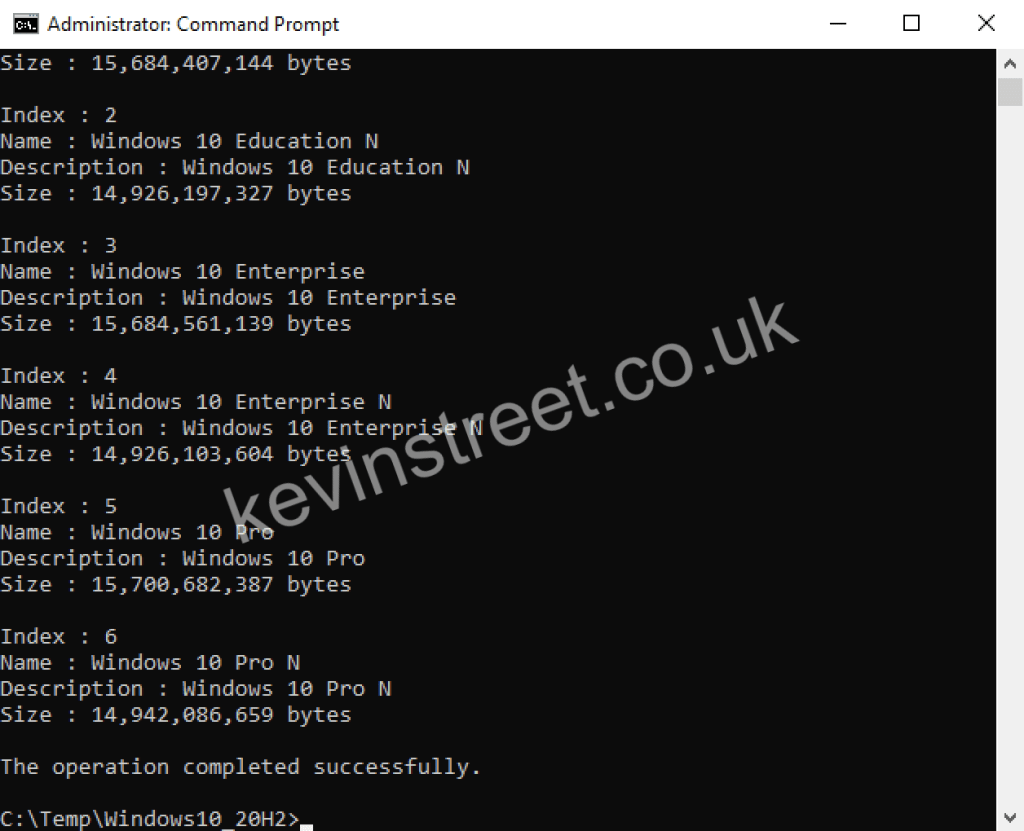
dism.exe /Get-WimInfo /WimFile:C:\Temp\Windows10_20H2\sources\install.esd

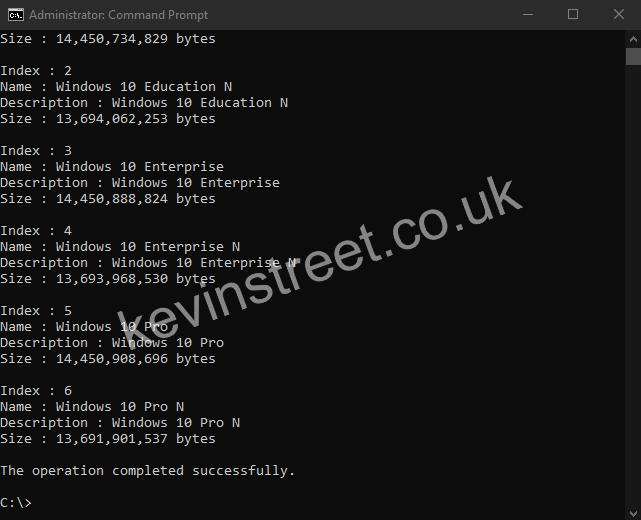
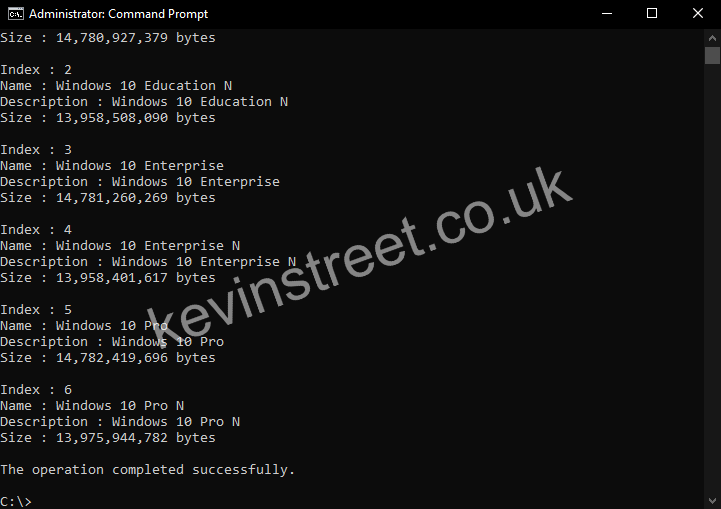
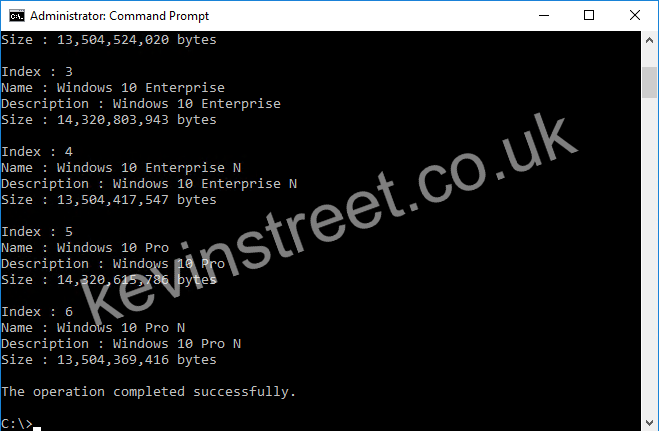
This will list each of the SKUs in the install.esd file. Make a note of the index of the SKU you want (in my case, I want the Enterprise SKU which is index 3).

DISM Get WIM Info

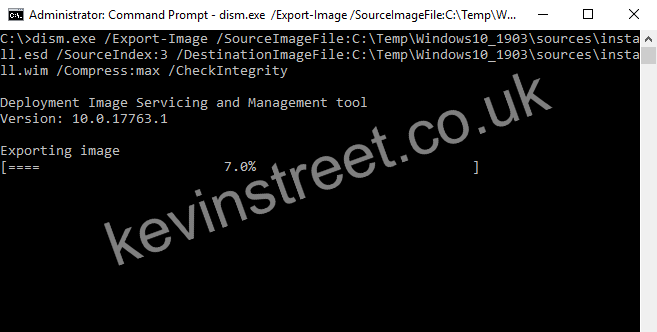
Now use the following command to create an install.wim file that contains the SKU you want:

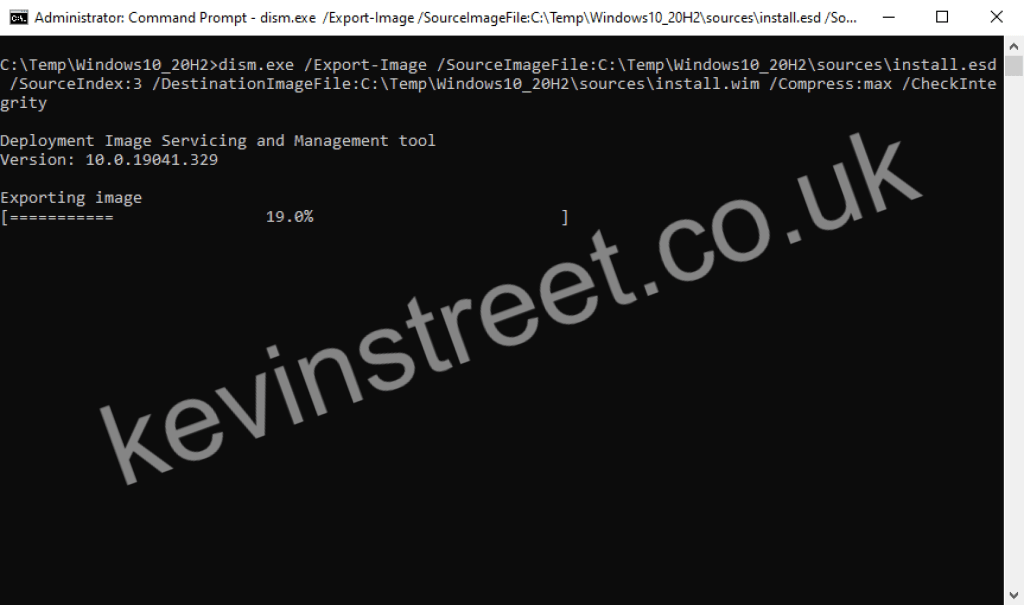
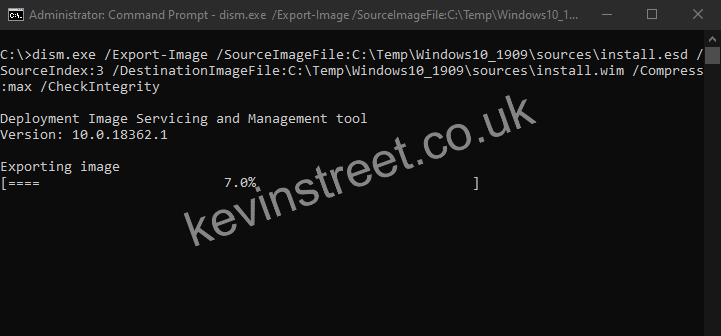
dism.exe /Export-Image /SourceImageFile:C:\Temp\Windows10_20H2\sources\install.esd /SourceIndex:3 /DestinationImageFile:C:\Temp\Windows10_20H2\sources\install.wim /Compress:max /CheckIntegrity

Make sure the path for /SourceImageFile and /DestinationImageFile are correct for you and change the /SourceIndex to match the index you noted earlier.

Once that is done you can delete the install.esd file if you want, to save space.

Unfortunately, this version of the Media Creation Tool still has no way to get the LTSC version of Windows 10 Enterprise (as far as I can tell).

One way to fix error 0x87d00231 in ClientIDManagerStartup.log

If you administer ConfigMgr frequently you have probably come across your fair share of clients that are not appearing in the console, or don’t appear to be completing their registration process. The first place most of us go is the ClientIDManagerStartup.log file as this log details the CcmExec process start up and is one of the first log files that errors will show up in if there are problems communicating with the site server.

You may see the following error appear in the log file: 0x87d00231.

Unfortunately, 0x87d00231 is a fairly generic error message that pretty much just means “something went wrong”. If you Google it, you will see a variety of solutions ranging from reinstalling the client to checking your PKI environment is functioning correctly or checking the health of your Management Point(s). These are very valid suggestions; however, they could lead you down a time-consuming rabbit hole. Before you go down that rabbit hole there is one very simple thing it could be, and the answer can be quickly found in the CcmMessaging.log file:

Request to http://YourManagementPoint.domain.com/ccm_system/request cannot be fulfilled since use of metered network is not allowed.

Yes, it could be as simple as the user of the device having set their connection as a metered connection. This can be done on Windows 8.1 and Windows 10 clients. Now you know the reason the user’s device isn’t completing its registration, you can find out why they are using a metered connection and correct it if it’s in error.

Download Window 10 Enterprise 2004 with the Media Creation Tool (including en-GB and other language versions)

AI generated image of someone downloading software on their computer

Update 20/10/2020: Microsoft no longer provides Windows 10 2004 to people via the Media Creation Tool. See this post on how to download Windows 10 Enterprise 20H2 using the Media Creation Tool.

The May 2020 update to Windows 10 is now available to download using the Media Creation Tool. Using the GUI, you can download the consumer ISO which contains the Home, Professional and Education SKUs of Windows 10.

If you want to download the Enterprise version of Windows 10, but don’t have access to Microsoft VLSC, Visual Studio or Action Pack subscriptions, it is possible to download it using the Media Creation Tool if you know the right command line switches.

To download Windows 10 Enterprise 2004 using the Media Creation Tool, log in with a local administrator account (for some reason it isn’t good enough to run the tool using Run as administrator, you actually do have to be logged in as an administrator) and download the tool. Open a CMD prompt, change directory to the directory you saved the Media Creation Tool in and enter the following command:

MediaCreationTool2004.exe /Eula Accept /Retail /MediaLangCode en-US /MediaArch x64 /MediaEdition Enterprise

When you’re prompted for a product key, you can use the Windows 10 Enterprise KMS client key from this site on Microsoft Docs.

This will download an ISO that contains the various Enterprise SKUs (Enterprise, Enterprise N, Education, Education N, Professional and Professional N) with en-US installed and set to default. If you’d prefer to get en-GB, use the following command:

MediaCreationTool2004.exe /Eula Accept /Retail /MediaLangCode en-GB /MediaArch x64 /MediaEdition Enterprise

This will download an ISO containing the same SKUs as above, but with en-GB installed and set to default.

As far as I can tell, this works for any of the language pack region tags listed on this site. So, for example, to download Windows 10 Enterprise 2004 with French installed and set to the default language, you can use this command:

MediaCreationTool2004.exe /Eula Accept /Retail /MediaLangCode fr-FR /MediaArch x64 /MediaEdition Enterprise

If you don’t specify the /MediaLangCode switch it will default to downloading an ISO with the same language pack as the OS you are running it from.

If you want to download the 32-bit version of Windows 10 Enterprise instead, you should change /MediaArch to x86.

When you have downloaded the ISO, you may unpack it and find that the it does not contain an install.wim, but instead contains install.esd in the sources directory. Depending on what you are doing, you may need the .wim file (for example, if you’re planning to use it with MECM/SCCM). Thankfully obtaining a .wim file from the .esd is quite straightforward using DISM.

Open a CMD prompt and use the following command (changing the path for /WimFile to match where your install.esd file is):

dism.exe /Get-WimInfo /WimFile:C:\Temp\Windows10_2004\sources\install.esd

This will list each of the SKUs in the install.esd file. Make a note of the index of the SKU you want (in my case, I want the Enterprise SKU which is index 3).

List of images included in a ESD file

Now use the following command to create an install.wim file that contains the SKU you want:

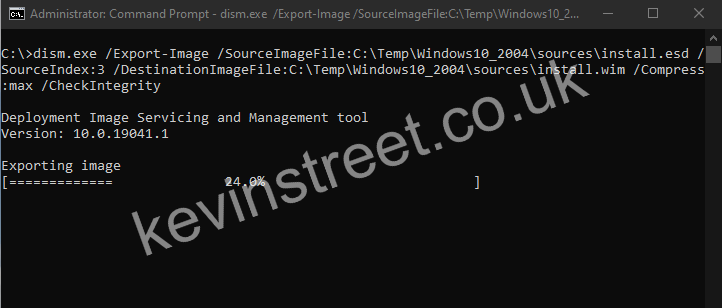
dism.exe /Export-Image /SourceImageFile:C:\Temp\Windows10_2004\sources\install.esd /SourceIndex:3 /DestinationImageFile:C:\Temp\Windows10_2004\sources\install.wim /Compress:max /CheckIntegrity

Make sure the path for /SourceImageFile and /DestinationImageFile are correct for you and change the /SourceIndex to match the index you noted earlier.

Converting an ESD file into a WIM

Once that is done you can delete the install.esd file if you want, to save space.

Unfortunately, this version of the Media Creation Tool still has no way to get the LTSC version of Windows 10 Enterprise (as far as I can tell).

Applying your Extended Security Updates (ESU) MAK to Windows 7 with SCCM

Over the last couple of years, the main focus of IT within many medium to large organisations has been migrating their users from Windows 7 to Windows 10. As of January 14th, 2020, Windows 7 is no longer receiving the monthly security updates it has been receiving since it was released 10 years ago. This means that any organisation with Windows 7 clients still in use is at an ever-increasing risk of attackers using this weaker link to compromise their network.

For organisations willing to pay, Microsoft is offering an additional 3 years of support for Windows 7 through their Extended Security Updates (ESU) program. If you are enrolled in this program you will be provided a MAK to install on the Windows 7 clients that you wish to continue receiving updates on (good for as many seats as you have paid for). Part 1 of this guide will go through the process of verifying the key you have is working by manually installing it on a Windows 7 device and installing the ESU test update Microsoft published. Part 2 will go through the process of deploying the key using SCCM.

A few other notes about this:

The ESU MAK you receive will be good for Windows 7 Professional, Enterprise and Ultimate (there are no separate SKUs for each edition of Windows). It will also work on both x86 and x64 versions of Windows 7.

Your existing Windows 7 updating mechanism will continue to work once you have activated the ESU MAK on the client. Whether you use SCCM, WSUS or simply allow devices to go out directly to the internet for updates, you do not need to make any changes. The updates will continue to be downloaded post January 2020 and will appear in Software Center or in the Windows Update control panel applet if the ESU MAK has been applied to that device.

This guide will be assuming your clients will be internet connected when you activate the ESU MAK. If that is not the case you may need to use the Volume Activation Management Tool as detailed in Microsoft’s blog post on this subject.

Part 1 – Manually installing your ESU MAK on a Windows 7 device
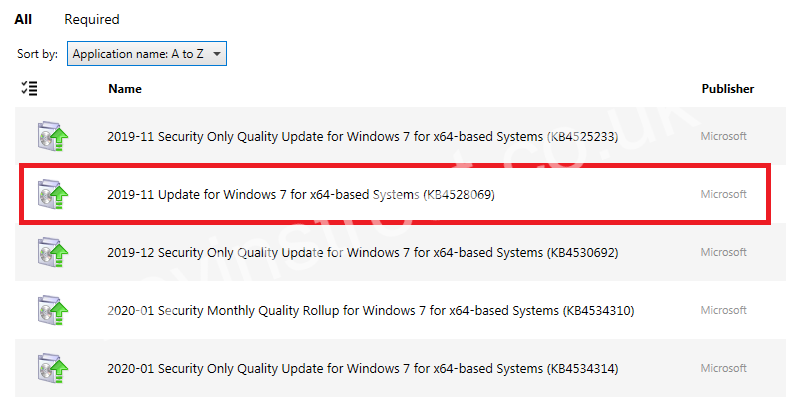
Before you start deploying this to every Windows 7 device still in use, you may want to install it on one device to prove that it is valid, and to test that your updates delivery mechanism is working. Microsoft published a test update that doesn’t do anything to the device but does use the same logic to detect whether or not a valid ESU MAK has been installed. You can use this to test the end to end process before the first real patches come out in February. This update is KB4528069.

To start, check for new updates on your Windows 7 device and verify that you do not see KB4528069 in the list of available updates:

List Of Updates Available Pre-ESU MAK Key Installation

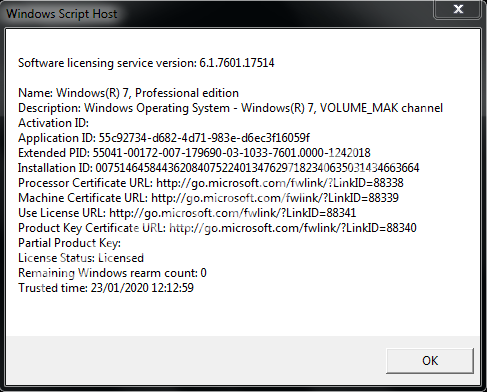
Open an administrative CMD prompt and type slmgr.vbs /dlv. This will bring up a window that shows your current licensing situation, and it is likely to look something like this:

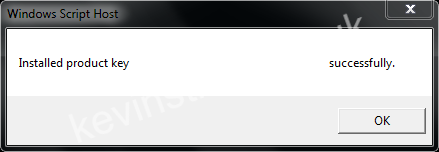
Next you need to install your ESU MAK. To do this, enter the command slmgr.vbs /ipk ABCDE-FGHIJ-KLMNO-PQRST-UVWXY, replacing this made-up key with your key. You should get a success message that looks like this:

If you do not get a success message, it may be because Windows 7 does not recognise the key. This is because support for these ESU MAK keys was only introduced in the September 2019 and October 2019 monthly updates for Windows 7 (which in turn require the SHA-2 code signing support update released in March 2019). If you have an issue installing your key, ensure that these are installed and try again.

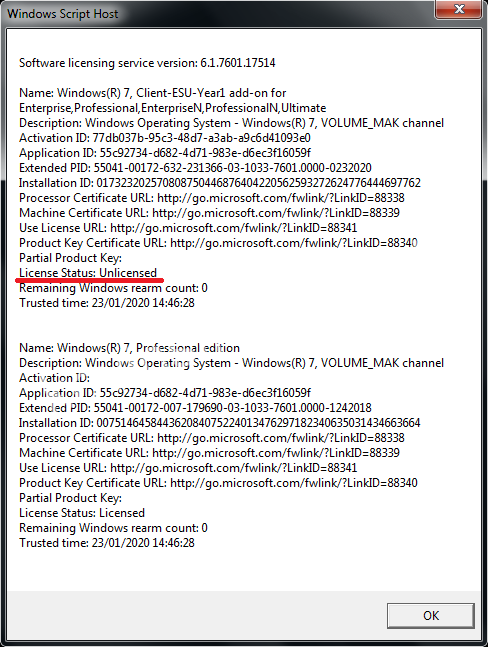
Once you have successfully installed the key you can verify that Windows has accepted it by once again using the command slmgr.vbs /dlv. This time you should see this:

As you can see it has not yet been activated. To activate it, you will need the Activation ID for the ESU SKU, which you can see here is “77db037b-95c3-48d7-a3ab-a9c6d41093e0”. In fact, Microsoft has already published what these will be for all 3 years of the ESU program, because they will be the same for everyone:

ESU ProgramESU SKU (or Activation) ID
Windows 7 SP1 (Client) 
Year 177db037b-95c3-48d7-a3ab-a9c6d41093e0
Year 20e00c25d-8795-4fb7-9572-3803d91b6880
Year 34220f546-f522-46df-8202-4d07afd26454
Windows Server 2008/R2 (Server) 
Year 1553673ed-6ddf-419c-a153-b760283472fd
Year 204fa0286-fa74-401e-bbe9-fbfbb158010d
Year 316c08c85-0c8b-4009-9b2b-f1f7319e45f9

Table taken from https://techcommunity.microsoft.com/t5/windows-it-pro-blog/how-to-get-extended-security-updates-for-eligible-windows/ba-p/917807

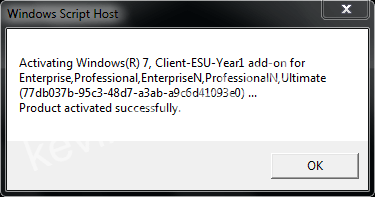
To activate the key, use the command slmgr.vbs -ato 77db037b-95c3-48d7-a3ab-a9c6d41093e0. You should get a window pop up to tell you the activation has been successful.

ESU MAK Key Activating Success

Now you can run slmgr.vbs /dlv one last time to see the final state of your licensing:

This time the License Status shows as Licensed!

Now it is time to test that KB4528069 will appear and install on this device. Start another scan for patches and allow some time for the scan to complete. After a while, open Software Center or Windows Updates and you should see the following:

Install it and confirm that your ESU updates are working as expected.

Part 2 – Deploying your Windows 7 ESU MAK to multiple devices using SCCM
Once you have confirmed your key is working, you no doubt want to install it on all remaining Windows 7 devices in your estate. The easiest way to do this is with a simple batch script deployed via SCCM.

First of all, if you do not already have one, create a collection that contains the Windows 7 devices you wish to install the ESU MAK on. If you simply want to create a collection that automatically contains any Windows 7 device connected to your SCCM, you can use the following query:

select SMS_R_SYSTEM.ResourceID,SMS_R_SYSTEM.ResourceType,SMS_R_SYSTEM.Name,SMS_R_SYSTEM.SMSUniqueIdentifier,SMS_R_SYSTEM.ResourceDomainORWorkgroup,SMS_R_SYSTEM.Client from sms_r_system where OperatingSystemNameandVersion like '%Workstation 6.1%' ORDER BY SMS_R_SYSTEM.ResourceID

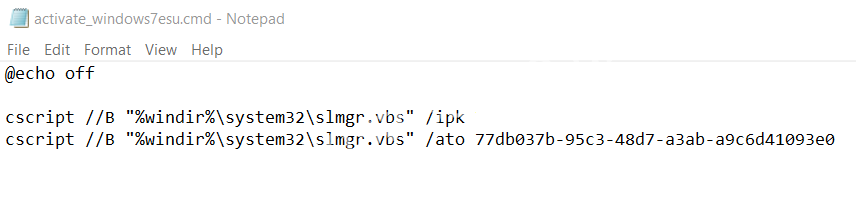
Next create a batch script containing the following commands:

@echo off
cscript //B "%windir%\system32\slmgr.vbs" /ipk ABCDE-FGHIJ-KLMNO-PQRST-UVWXY
cscript //B "%windir%\system32\slmgr.vbs" /ato 77db037b-95c3-48d7-a3ab-a9c6d41093e0

Once again replace the made-up key here with your ESU MAK.

Copy this script to a network location that is accessible by SCCM.

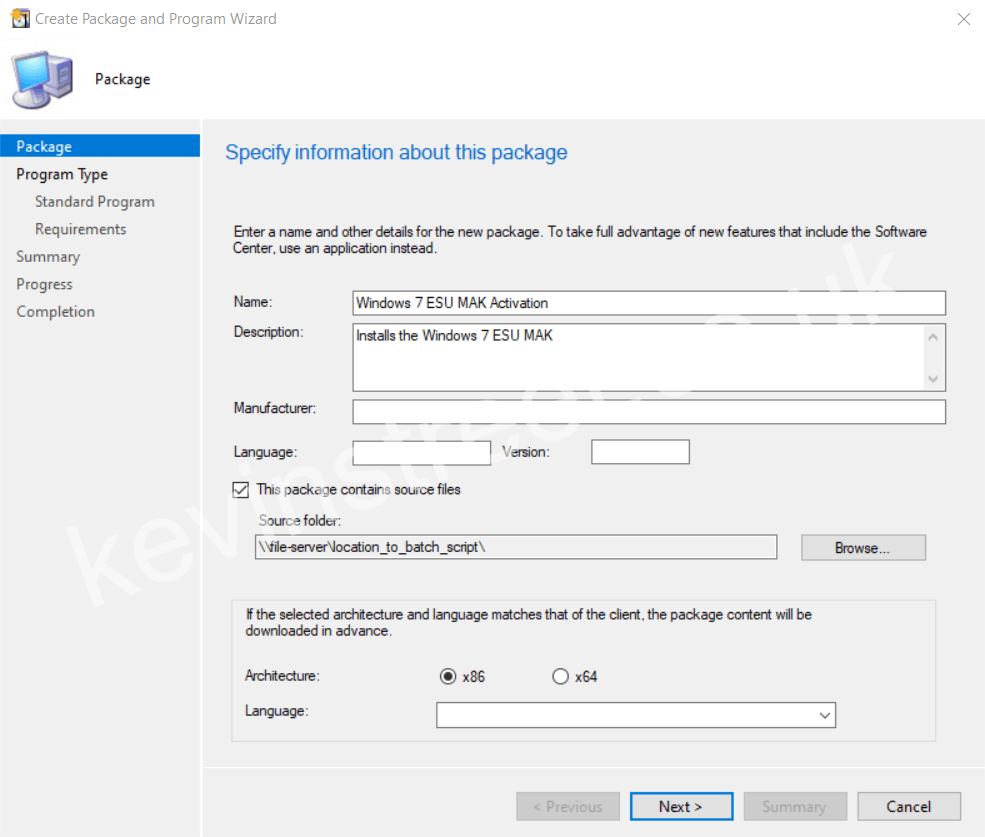
In the SCCM console, go to Software Library > Packages and in the ribbon click Create Package.  Fill in fields such as Name, Description and tick “This package contains source files” and enter the network location where you put the batch script.

ESU MAK Package Creation

On the next screen select “Standard program”, and on the next screen give the Program a name. The command line should be cmd /c activate_windows7esu.cmd and in the Run drop down menu you should select Hidden. This will ensure that when this runs on the client, the user does not see the CMD box appear (however briefly). Make sure the name of the script matches what you called it.

You can complete the rest of the wizard by clicking Next and Finish. Once created, distribute this package to your Distribution Points, and finally deploy it to the collection containing Windows 7 devices. When deploying, ensure you make it a Required deployment, set the Assignment schedule to “As soon as possible” and in the User Experience section make sure that Software installation is allowed outside of maintenance windows. This will allow the script to run as soon as possible on your Windows 7 devices.

Hopefully this will get you well on your way to continuing to receive Windows 7 updates over the next few months, and fingers crossed you’re not far from eliminating Windows 7 from your estate completely!

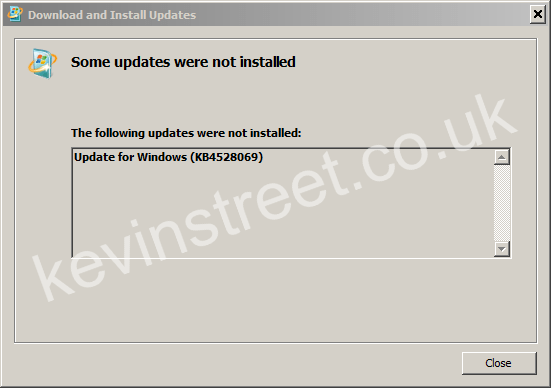
Bonus fun: What happens if you try to install the test update, KB4528069, on a Windows 7 device that you have not activated your ESU MAK on? It simply fails to install:

KB4528069 Fails to Install

Download Window 10 Enterprise 1909 with the Media Creation Tool (including en-GB and other language versions)

AI generated image of someone downloading software on their computer

Update 20/10/2020: Microsoft no longer provides Windows 10 1909 to people via the Media Creation Tool. See this post on how to download Windows 10 Enterprise 20H2 using the Media Creation Tool.

The November 2019 update to Windows 10 is now available to download using the Media Creation Tool. Using the GUI, you can download the consumer ISO which contains the Home, Professional and Education SKUs of Windows 10.

If you want to download the Enterprise version of Windows 10, but don’t have access to Microsoft VLSC, Visual Studio or Action Pack subscriptions, it is possible to download it using the Media Creation Tool if you know the right command line switches.

To download Windows 10 Enterprise 1909 using the Media Creation Tool, log in with a local administrator account (for some reason it isn’t good enough to run the tool using Run as administrator, you actually do have to be logged in as an administrator) and download the tool. Open a CMD prompt and change directory to the directory you saved the Media Creation Tool in, and enter the following command:

MediaCreationTool1909.exe /Eula Accept /Retail /MediaLangCode en-US /MediaArch x64 /MediaEdition Enterprise

When you’re prompted for a product key, you can use the Windows 10 Enterprise KMS client key from this site on Microsoft Docs.

This will download an ISO that contains the various Enterprise SKUs (Enterprise, Enterprise N, Education, Education N, Professional and Professional N) with en-US installed and set to default. If you’d prefer to get en-GB, use the following command:

MediaCreationTool1909.exe /Eula Accept /Retail /MediaLangCode en-GB /MediaArch x64 /MediaEdition Enterprise

This will download an ISO containing the same SKUs as above, but with en-GB installed and set to default.

As far as I can tell, this works for any of the language pack region tags listed on this site. So, for example, to download Windows 10 Enterprise 1909 with French installed and set to the default language, you can use this command:

MediaCreationTool1909.exe /Eula Accept /Retail /MediaLangCode fr-FR /MediaArch x64 /MediaEdition Enterprise

If you don’t specify the /MediaLangCode switch it will default to downloading an ISO with the same language pack as the OS you are running it from.

If you want to download the 32-bit version of Windows 10 Enterprise instead, you should change /MediaArch to x86.

When you have downloaded the ISO, you may unpack it and find that the it does not contain an install.wim, but instead contains install.esd in the sources directory. Depending on what you are doing, you may need the .wim file (for example, if you’re planning to use it with SCCM). Thankfully obtaining a .wim file from the .esd is quite straightforward using DISM.

Open a CMD prompt and use the following command (changing the path for /WimFile to match where your install.esd file is):

dism.exe /Get-WimInfo /WimFile:C:\Temp\Windows10_1909\sources\install.esd

This will list each of the SKUs in the install.esd file. Make a note of the index of the SKU you want (in my case, I want the Enterprise SKU which is index 3).

Now use the following command to create an install.wim file which contains the SKU you want:

dism.exe /Export-Image /SourceImageFile:C:\Temp\Windows10_1909\sources\install.esd /SourceIndex:3 /DestinationImageFile:C:\Temp\Windows10_1909\sources\install.wim /Compress:max /CheckIntegrity

Make sure the path for /SourceImageFile and /DestinationImageFile are correct for you and change the /SourceIndex to match the index you noted earlier.

Once that is done you can delete the install.esd file if you want, to save space.

Unfortunately, I have found no way to get the LTSC version, or older versions of Windows 10 using this tool.

Using Enterprise Mode in Microsoft Edge and Internet Explorer 11

Enterprise Mode is a feature that shipped in Internet Explorer 11 for Windows 10, and was also introduced to Internet Explorer 11 in Windows 7 and 8.1 in April 2014 that should be seriously considered by any organisation still hoping to complete their Windows 10 migrations before end of support in January 2020, but are worried that their older web applications may not work in the latest version of Internet Explorer.

Enterprise Mode has two functions depending on which browser you are using; In Microsoft Edge it can be used to automatically redirect certain website to IE11 (Edge itself does not do any compatibility rendering, it simply shifts you over to IE11 to do that). In IE11, it can be used to open specified sites in certain document modes or in IE8 or IE7 Enterprise Mode which offers greater emulation of those browsers.

To start, you must enable Enterprise Mode in both Edge and IE11 separately. Yes, there are two places in Group Policy where you have to enable this feature to fully utilise it.

For Microsoft Edge:
Computer Configuration > Policies > Administrative Templates > Windows Components > Microsoft Edge > Configure the Enterprise Mode Site List

For Internet Explorer 11:
Computer Configuration > Policies > Administrative Templates > Windows Components > Internet Explorer > Use the Enterprise Mode IE website list

When you have enabled them, you are also required to enter a path where your site list can be found. This can either be a URL (if you have an internal web server to host it) or a file share location (such as \\fileserver.domain.com\SiteList\sitelist.xml).

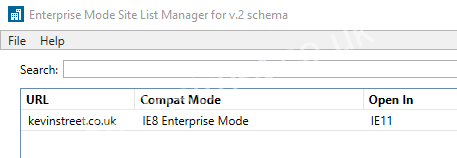
To create your site list, start by downloading the Enterprise Mode Site List Manager tool. That is assuming you are working with Windows 10 clients. If you are working with Windows 7 or 8.1 clients, download this tool instead. Once you’ve installed it you are given an easy interface to generate a valid XML file for the site list. Just for fun, let’s take my site and configure Edge to open it in IE11, and IE11 to render it in IE8 compatibility mode:

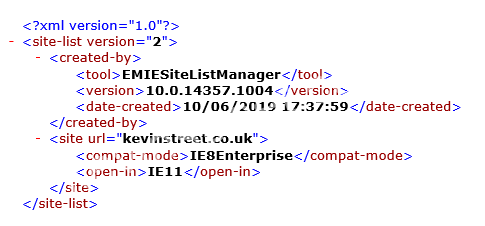
Let’s see what that looks like in the resulting XML:

A few things to take away from this:

1) The site list is on version 2. This matters because if this does not increment each time you make a change, Edge and IE11 will not honour the change.
2) The site URL is just the main domain and does not include the https:// or any subdomains. In this case, any URL containing kevinstreet.co.uk will redirect to IE11 (for example, https://reallyoldapp.kevinstreet.co.uk or https://kevinstreet.co.uk/reallyoldapp will redirect to IE11). If you only want a specific subdomain to redirect to IE11 then you should specify that subdomain.
3) The selected compatibility is IE8 Enterprise Mode.
4) The site will be opened in IE11. If a user tries to open it in Microsoft Edge, IE11 will automatically open and navigate to the page.

With the site populated with sites (presumably not actually with my site!) and the site list XML saved to the location you specified in the GPO, open Microsoft Edge and test browsing to the site you specified. It may not work immediately! Edge takes approximately 60 seconds from the time it is opened to check for a new version of the site list and apply it (as does IE11).

Super handy tip: If you want to confirm that your site list is working, in both Edge and IE11, type about:compat in the URL to get a list of websites and their prescribed behaviour. You even get a Force update button to speed up the process of updating the site list. Very useful if you are in the process of adding sites and want to quickly test that your configuration is working.

Once you’re sure both Edge and IE11 are using the latest version of the site list, retry browsing to a URL you specified. In Edge, it should automatically open in IE11 and open in the specified compatibility mode.

Gosh my site looks pretty bad being rendered as if it was open in Internet Explorer 8!

As you can see from the image above, the site has loaded in Enterprise Mode (this is clear because the of the little blue icon that appears next to the URL). This icon only appears when you select Enterprise Mode as a compatibility mode, it does not appear if you select a document mode. You can still confirm that it has worked by browsing to the site and pressing F12 to open the Developer Tools, then selecting the Emulation tab. In here you will see that the Document mode and Browser profile are configured as you specified in the site list.

Bonus cool stuff: Google Chrome also has a version of this, called Legacy Browser Support. This is particularly cool because you can configure it with Group Policy and it can use the same site list as Edge and IE11, so no need to maintain separate lists! Click here to learn more about Google Chrome Legacy Browser Support for Windows.

Making iSBEM and Jet Reports work in Windows 10

This may be quite a niche post, but if it helps just one person overcome a “run-time error 5” whenever they try to run one of the iSBEM databases or an “Access Denied”1 error when trying to run a report powered by Jet Reports then it’s worth it!

In Windows 10 the built-in antimalware solution, Windows Defender, has a feature known as Windows Defender Exploit Guard. You can read up about this feature in more detail here, but one of its features in particular, the attack surface reduction rules, can sometimes prevent certain behaviour working in Microsoft Office applications.

Looking more closely at the attack surface reduction rules, you can see that a few of them are tailored specifically at Microsoft Office applications. In my experience the rule “Block all Office applications from creating child processes” can prevent the external processes needed by iSBEM and Jet Reports from running, which causes the errors mentioned above. You can quite easily check if this is the case by attempting to run an iSBEM database or Jet Report and getting the error, then open the Event Viewer and navigate to Applications and Services Logs > Microsoft > Windows > Windows Defender > Operational and looking for any warning or error level events that indicate that Windows Defender blocked the process from running.

If you do find the block event in the Event Viewer, you can create an exclusion to prevent it from being blocked. This can either be done in Group Policy or PowerShell. Open Group Policy editor and navigate to Computer Configuration > Administrative Templates > Windows Components > Windows Defender Antivirus > Windows Defender Exploit Guard > Attack Surface Reduction. In here, one of the policies that can be configured is “Exclude files and paths from Attack Surface Reduction rules”, and you can use this to add your exclusions. You can use wildcards and environment variables to ensure the exclusions you add will work regardless of where they apply (for more details on that see this article). Try to make your exclusions as specific as possible so that you still get as much protection from Windows Defender Exploit Guard as possible!

If you wish to add exclusions using PowerShell, you should use the following command:

Add-MpPreference -AttackSurfaceReductionOnlyExclusions "Path to exclude"

For example, to unblock the iSBEM database you may use the following exclusion:

Add-MpPreference -AttackSurfaceReductionOnlyExclusions "%SYSTEMDRIVE%\NCM\iSBEM_v5.6.a\iSBEM_v5.6.a.mdb"

With that in place, test running the database again and continue to monitor the logs in Event Viewer until all blocks have been identified and exclusions created.

1Of course an error like Access Denied isn’t necessarily being caused by Windows Defender, it could actually be a permission issue.

Download Window 10 Enterprise 1903 with the Media Creation Tool (including en-GB and other language versions)

AI generated image of someone downloading software on their computer

Update 20/10/2020: Microsoft no longer provides Windows 10 1903 to people via the Media Creation Tool. See this post on how to download Windows 10 Enterprise 20H2 using the Media Creation Tool.

The March (or is that May?) 2019 version of Windows 10 is now available to download using the Media Creation Tool. Using the GUI, you can download the consumer ISO which contains the Home, Professional and Education SKUs of Windows 10.

If you want to download the Enterprise version of Windows 10, but don’t have access to Microsoft VLSC, Visual Studio or Action Pack subscriptions, it is possible to download it using the Media Creation Tool if you know the right command line switches.

To download Windows 10 Enterprise 1903 using the Media Creation Tool, log in with a local administrator account (for some reason it isn’t good enough to run the tool using Run as administrator, you actually do have to be logged in as an administrator) and download the tool. Open a CMD prompt and change directory to the directory you saved the Media Creation Tool in, and enter the following command:

MediaCreationTool1903.exe /Eula Accept /Retail /MediaArch x64 /MediaEdition Enterprise

When you’re prompted for a product key, you can use the Windows 10 Enterprise KMS client key from this site on Microsoft Docs.

This will download an ISO that contains the various Enterprise SKUs (Enterprise, Enterprise N, Education, Education N, Professional and Professional N) with en-US installed and set to default. If you’d prefer to get en-GB, use the following command:

MediaCreationTool1903.exe /Eula Accept /Retail /MediaLangCode en-GB /MediaArch x64 /MediaEdition Enterprise

This will download an ISO containing the same SKUs as above, but with en-GB installed and set to default.

As far as I can tell, this works for any of the language pack region tags listed on this site. So for example, to download Windows 10 Enterprise 1903 with French installed and set to the default language, you can use this command:

MediaCreationTool1903.exe /Eula Accept /Retail /MediaLangCode fr-FR /MediaArch x64 /MediaEdition Enterprise

If you want to download the 32-bit version of Windows 10 Enterprise instead, you should change /MediaArch to x86.

When you have downloaded the ISO, you may unpack it to find that the it does not contain an install.wim, but instead contains install.esd in the sources directory. Depending on what you are doing, you may need the .wim file (for example, if you’re planning to use it with SCCM). Thankfully obtaining a .wim file from the .esd is quite straightforward using DISM.

Open a CMD prompt and use the following command (changing the path for /WimFile to match where your install.esd file is):

dism.exe /Get-WimInfo /WimFile:C:\Temp\Windows10_1903\sources\install.esd

This will list each of the SKUs in the install.esd file. Make a note of the index of the SKU you want (in my case, I want the Enterprise SKU which is index 3).

Now use the following command to create an install.wim file which contains the SKU you want:

dism.exe /Export-Image /SourceImageFile:C:\Temp\Windows10_1903\sources\install.esd /SourceIndex:3 /DestinationImageFile:C:\Temp\Windows10_1903\sources\install.wim /Compress:max /CheckIntegrity

Make sure the path for /SourceImageFile and /DestinationImageFile are correct for you and change the /SourceIndex to match the index you noted earlier.

Once that is done you can delete the install.esd file if you want, to save space.

This process also works with earlier versions of Windows 10.

Installing Remote Server Administration Tools (RSAT) for Windows 10 1809 (including SCCM deployment) (Part 2)

Installing Remote Server Administration Tools (RSAT) for Windows 10 1809 (including SCCM deployment) (Part 1)
Installing Remote Server Administration Tools (RSAT) for Windows 10 1809 (including SCCM deployment) (Part 2)

In the first part of this guide I stated that in order to install RSAT in Windows 10 1809 and above, Windows needs to be able to reach the Internet to download the source files. This is due to RSAT being a feature-on-demand in 1809 and above, so the files are not included on the disk but instead hosted online and downloaded when required.

Well it turns out the source files can be downloaded, if you have access to Microsoft Volume Licensing Service Center or Visual Studio downloads. Search for “features on demand” and make sure you download the latest ones for 1809 (in my Visual Studio downloads portal it is listed as “Windows 10 Features on Demand, version 1809 (Updated Sept 2018)”).

Once you have downloaded the ISO, you can use it as the source location when installing RSAT with PowerShell. Say, for example, you mount the ISO as the F: drive, you would use the following command:

Get-WindowsCapability -Online | Where-Object {($_.State -notmatch 'Installed') -and ($_.Name -match 'RSAT')} | %{Add-WindowsCapability -Online -LimitAccess -Name $_.Name -Source F:\ }

However, there is a lot more on that disk than just the files required for RSAT, and if you wish to use this in an SCCM package you will want to sanitise it a bit. The whole disk contains 4.6 GB of files, however the ones we need for RSAT are only about 500 MB.

To create a package using only the files you need for RSAT, create a folder somewhere called RSATSource and copy the files with the following names (there will be multiple files per search, you need all of them):

Microsoft-Windows-ActiveDirectory-DS-LDS-Tools-FoD-Package~31bf3856ad364e35~amd64~
Microsoft-Windows-BitLocker-Recovery-Tools-FoD-Package~31bf3856ad364e35~amd64~
Microsoft-Windows-CertificateServices-Tools-FoD-Package~31bf3856ad364e35~amd64~
Microsoft-Windows-DHCP-Tools-FoD-Package~31bf3856ad364e35~amd64~
Microsoft-Windows-DNS-Tools-FoD-Package~31bf3856ad364e35~amd64~
Microsoft-Windows-FailoverCluster-Management-Tools-FOD-Package~31bf3856ad364e35~amd64~
Microsoft-Windows-FileServices-Tools-FoD-Package~31bf3856ad364e35~amd64~
Microsoft-Windows-GroupPolicy-Management-Tools-FoD-Package~31bf3856ad364e35~amd64~
Microsoft-Windows-IPAM-Client-FoD-Package~31bf3856ad364e35~amd64~
Microsoft-Windows-LLDP-Tools-FoD-Package~31bf3856ad364e35~amd64~
Microsoft-Windows-NetworkController-Tools-FoD-Package~31bf3856ad364e35~amd64~
Microsoft-Windows-NetworkLoadBalancing-Tools-FoD-Package~31bf3856ad364e35~amd64~
Microsoft-Windows-RemoteAccess-Management-Tools-FoD-Package~31bf3856ad364e35~amd64~
Microsoft-Windows-RemoteDesktop-Services-Tools-FoD-Package~31bf3856ad364e35~amd64~
Microsoft-Windows-ServerManager-Tools-FoD-Package~31bf3856ad364e35~amd64~
Microsoft-Windows-Shielded-VM-Tools-FoD-Package~31bf3856ad364e35~amd64~
Microsoft-Windows-StorageMigrationService-Management-Tools-FOD-Package~31bf3856ad364e35~amd64~
Microsoft-Windows-StorageReplica-Tools-FoD-Package~31bf3856ad364e35~amd64~
Microsoft-Windows-SystemInsights-Management-Tools-FOD-Package~31bf3856ad364e35~amd64~
Microsoft-Windows-VolumeActivation-Tools-FoD-Package~31bf3856ad364e35~amd64~

You will also need to copy the “metadata” folder and the file “FoDMetadata_Client.cab”. With these files copied into their own folder, you can change the PowerShell to:

Get-WindowsCapability -Online | Where-Object {($_.State -notmatch 'Installed') -and ($_.Name -match 'RSAT')} | %{Add-WindowsCapability -Online -LimitAccess -Name $_.Name -Source C:\RSATSource }

Obviously replace C:\RSATSource with the location of the source folder you copied all those files into.

Creating an SCCM application to deploy RSAT
Since I already wrote this up in Part 1 of this guide, this part is mostly just a rehash of that. However, there is one change to the script so that it now uses the local packaged source, rather than going online to download the source.

To create an application in SCCM you will need three things: An install command, an uninstall command and a detection method. To cover the install and uninstall command, let’s create a PowerShell script with an install and uninstall function that can be called from the command line. The following PowerShell script is used to install and uninstall all RSAT components; if you want to pick and choose the ones you install or uninstall, modify it accordingly.

## Install all RSAT components

Function InstallRSAT {
    
Get-WindowsCapability -Online | Where-Object {($_.State -notmatch         'Installed') -and ($_.Name -match 'RSAT')} | %{Add-WindowsCapability -Online -LimitAccess -Name $_.Name -Source $PSScriptRoot\RSATSource}

}


## Uninstall each RSAT component so that no dependancies are left behind

Function UninstallRSAT {
    
Get-WindowsCapability -Online | Where-Object {($_.State -match 'Installed') -and ($_.Name -match 'Rsat.BitLocker.Recovery.Tools~~~~0.0.1.0')} | %{Remove-WindowsCapability -Name $_.Name -Online}
    Get-WindowsCapability -Online | Where-Object {($_.State -match 'Installed') -and ($_.Name -match 'Rsat.CertificateServices.Tools~~~~0.0.1.0')} | %{Remove-WindowsCapability -Name $_.Name -Online}
    Get-WindowsCapability -Online | Where-Object {($_.State -match 'Installed') -and ($_.Name -match 'Rsat.DHCP.Tools~~~~0.0.1.0')} | %{Remove-WindowsCapability -Name $_.Name -Online}
    Get-WindowsCapability -Online | Where-Object {($_.State -match 'Installed') -and ($_.Name -match 'Rsat.Dns.Tools~~~~0.0.1.0')} | %{Remove-WindowsCapability -Name $_.Name -Online}
    Get-WindowsCapability -Online | Where-Object {($_.State -match 'Installed') -and ($_.Name -match 'Rsat.FailoverCluster.Management.Tools~~~~0.0.1.0')} | %{Remove-WindowsCapability -Name $_.Name -Online}
    Get-WindowsCapability -Online | Where-Object {($_.State -match 'Installed') -and ($_.Name -match 'Rsat.FileServices.Tools~~~~0.0.1.0')} | %{Remove-WindowsCapability -Name $_.Name -Online}
    Get-WindowsCapability -Online | Where-Object {($_.State -match 'Installed') -and ($_.Name -match 'Rsat.IPAM.Client.Tools~~~~0.0.1.0')} | %{Remove-WindowsCapability -Name $_.Name -Online}
    Get-WindowsCapability -Online | Where-Object {($_.State -match 'Installed') -and ($_.Name -match 'Rsat.LLDP.Tools~~~~0.0.1.0')} | %{Remove-WindowsCapability -Name $_.Name -Online}
    Get-WindowsCapability -Online | Where-Object {($_.State -match 'Installed') -and ($_.Name -match 'Rsat.NetworkController.Tools~~~~0.0.1.0')} | %{Remove-WindowsCapability -Name $_.Name -Online}
    Get-WindowsCapability -Online | Where-Object {($_.State -match 'Installed') -and ($_.Name -match 'Rsat.NetworkLoadBalancing.Tools~~~~0.0.1.0')} | %{Remove-WindowsCapability -Name $_.Name -Online}
    Get-WindowsCapability -Online | Where-Object {($_.State -match 'Installed') -and ($_.Name -match 'Rsat.RemoteAccess.Management.Tools~~~~0.0.1.0')} | %{Remove-WindowsCapability -Name $_.Name -Online}
    Get-WindowsCapability -Online | Where-Object {($_.State -match 'Installed') -and ($_.Name -match 'Rsat.RemoteDesktop.Services.Tools~~~~0.0.1.0')} | %{Remove-WindowsCapability -Name $_.Name -Online}
    Get-WindowsCapability -Online | Where-Object {($_.State -match 'Installed') -and ($_.Name -match 'Rsat.Shielded.VM.Tools~~~~0.0.1.0')} | %{Remove-WindowsCapability -Name $_.Name -Online}
    Get-WindowsCapability -Online | Where-Object {($_.State -match 'Installed') -and ($_.Name -match 'Rsat.StorageMigrationService.Management.Tools')} | %{Remove-WindowsCapability -Name $_.Name -Online}
    Get-WindowsCapability -Online | Where-Object {($_.State -match 'Installed') -and ($_.Name -match 'Rsat.StorageReplica.Tools~~~~0.0.1.0')} | %{Remove-WindowsCapability -Name $_.Name -Online}
    Get-WindowsCapability -Online | Where-Object {($_.State -match 'Installed') -and ($_.Name -match 'Rsat.SystemInsights.Management.Tools~~~~0.0.1.0')} | %{Remove-WindowsCapability -Name $_.Name -Online}
    Get-WindowsCapability -Online | Where-Object {($_.State -match 'Installed') -and ($_.Name -match 'Rsat.VolumeActivation.Tools~~~~0.0.1.0')} | %{Remove-WindowsCapability -Name $_.Name -Online}
    Get-WindowsCapability -Online | Where-Object {($_.State -match 'Installed') -and ($_.Name -match 'Rsat.WSUS.Tools~~~~0.0.1.0')} | %{Remove-WindowsCapability -Name $_.Name -Online}
    Get-WindowsCapability -Online | Where-Object {($_.State -match 'Installed') -and ($_.Name -match 'Rsat.ActiveDirectory.DS-LDS.Tools~~~~0.0.1.0')} | %{Remove-WindowsCapability -Name $_.Name -Online}
    Get-WindowsCapability -Online | Where-Object {($_.State -match 'Installed') -and ($_.Name -match 'Rsat.GroupPolicy.Management.Tools~~~~0.0.1.0')} | %{Remove-WindowsCapability -Name $_.Name -Online}
    Get-WindowsCapability -Online | Where-Object {($_.State -match 'Installed') -and ($_.Name -match 'Rsat.ServerManager.Tools~~~~0.0.1.0')} | %{Remove-WindowsCapability -Name $_.Name -Online}

}


## Get the parameter passed to the script

$DeploymentType=$args[0]


## Run the install or uninstall function

if ($DeploymentType -eq "Uninstall") {
    
UninstallRSAT
}


else {
    
InstallRSAT
}

Copy that script and save it as Install-RSAT.ps1. Create your application in SCCM and go through the wizard, giving it a name, publisher and version. The source will be the location where you saved Install-RSAT.ps1. Don’t forget to also copy your RSATSource folder to this location! When you get to the install and uninstall commands in the wizard, you can use the following commands:

To install:
powershell.exe -ExecutionPolicy Bypass -File .\Install-RSAT.ps1 -DeploymentType Install

To uninstall:
powershell.exe -ExecutionPolicy Bypass -File .\Install-RSAT.ps1 -DeploymentType Uninstall

Next up is the detection method. For this, you will need to use a PowerShell detection method. The PowerShell will simply check that the RSAT optional components have their install state set to Installed:

$installed = Get-WindowsCapability -Online | where name -like RSAT* | where state -like Installed | select name

if ($installed) {
    return $true
}

That should be all you need! Deploy that to a Windows 10 1809 device and the user should be able to install RSAT from Software Center.