Migrating Azure Virtual Machines from one subscription to another (or one tenant to another)

AI generated image showing a woman holding a computer in a box

Sometimes it may be necessary to migrate Azure virtual machines between subscriptions or tenants, for example if you are splitting resources to set up more granular permissions or buying/selling parts of your business.

Microsoft has a built-in move system for many resources in Azure, which does include virtual machines. However, with virtual machines it comes with a few caveats; you can only migrate VMs between different subscriptions in the same tenant, and you must migrate all dependant resources at the same time. For a virtual machine this means that you must also migrate the virtual network and network security group (if you have one) that the virtual machine is attached to. But migrating a virtual network means you must migrate every other virtual machine that is attached to it at the same time, which may be inconvenient or simply not needed. Because of these caveats we need to look at alternative ways to migrate Azure virtual machines.

The way I migrate Azure virtual machines is by following these steps:

  1. (If migrating to a different subscription in the same tenant) Create a snapshot of the virtual machine OS and data disks in the new subscription and then convert the snapshot to a disk
  2. (If migrating to a different tenant) Export the virtual machine OS and data disks to a VHD which you download and then upload in the new tenant
  3. Create a new virtual machine with the same size and image as the source virtual machine, and put it in the new resource group and virtual network when you get to that part of the creation process
  4. When the new virtual machine is created, immediately stop it and swap out the OS disk to the one you migrated over
  5. Reconfigure anything you need to in the virtual machine, test it and then tidy up by deleting the leftover snapshot and the source virtual machine

This method also has the advantage that the source virtual machine will remain in place until you have completed the migration, so if something goes wrong you can always fall-back to the existing virtual machine.

Here’s the process in more detail:

  1. Prepare the virtual machine
  2. Create a copy of the virtual machine disk(s) in the new subscription (same tenant)
  3. Create a copy of the virtual machine disk(s) in the new tenant
  4. Create new virtual machine

Prepare the virtual machine

Ensure you have an account that you can use to log on to the virtual machine that does not rely on something like Active Directory, as this may not be available immediately after you complete the migration. In my case these are Windows virtual machines so I will ensure that there is a local admin user account available.

Before stopping the virtual machine, you also need to turn off Azure Disk Encryption (if you have it turned on) on both the OS disk and data disk. To do this follow these steps:

Using PowerShell, connect to your Azure tenant using:

Connect-AzAccount

If you have multiple subscriptions, use the following command to select the same subscription that your virtual machine is in (replacing the values between the pointy brackets with the correct values for you):

Set-AzContext -Subscription "<subscription name"

Now run the following command to get the current encryption status of the virtual machine you plan to migrate (replacing the values between the pointy brackets with the correct values for you):

Get-AzVMDiskEncryptionStatus -ResourceGroupName "<resource group name>" -VMName "<virtual machine name>"

If the value of either OsVolumeEncrypted or DataVolumesEncrypted is Encrypted, you will need to run this command to disable the encryption before you can create a snapshot or export the disk (replacing the values between the pointy brackets with the correct values for you):

Disable-AzVMDiskEncryption -ResourceGroupName "<resource group name>" -VMName "<virtual machine name>" -VolumeType All

That can take a few minutes to complete. Once it has completed, stop and virtual machine so that its status shows as “Stopped (deallocated)”.

Create a copy of the virtual machine disk(s) in the new subscription (same tenant)

Note: If you are moving the virtual machine to a new tenant, skip down to the next section.

If you are moving the virtual machine to a different subscription in the same tenant, the process of copying the disk to the new subscription is quick.

Go to the virtual machine in your Azure portal and click on Settings -> Disks. In the OS disk section, click on the disk and then click Create snapshot. In the first page of settings, select the new subscription name and the new resource group name (or create a new resource group here if needed).

Most of the rest of the page will be greyed out now, which is fine. You can select the storage type if you want, but Standard HDD is enough for this.

Imagine showing Create snapshot page in Azure

Complete the rest of the process for creating the snapshot and once validation has passed, click Create.

Once the deployment has completed, click Go to resource and from here you can click Create disk. This time the subscription and resource group should default to the same ones you selected for the snapshot (but always worth double checking), so give the disk a name and select the availability zone if needed. You can also change the size of the disk, however by default it will select the same size that the original disk used.

Continue through the rest of the process, setting the options you want in the Encryption page, the Networking page and so on until you get to the Review + create page. Once validation is done, click Create.

Once the disk creation has completed, you can delete the snapshot. Go to the Resource group and find the snapshot in the list of resources. Select it and click Delete, confirm you selected the right resource and confirm the deletion.

Image showing the process of deleting a resource in Azure

The OS disk is now ready to be attached to a new virtual machine. If this virtual machine has any data disks, you should repeat this process for the data disks. Once you are done head down to the Create new virtual machine section of this guide.

Create a copy of the virtual machine disk(s) in the new tenant

Note: If you are moving the virtual machine to a different subscription in the same tenant, you should follow the steps in the previous section and skip this one.

Copying the virtual machine to a new tenant is a slightly more complicated process than moving it between different subscription in the same tenant, but still not too bad.

Go to the virtual machine in your Azure portal and click on Settings -> Disks. In the OS disk section, click on the disk and then click on Disk Export which you can find in Settings on the left.

Image showing the page where you can export the disk

Note: If you have “Disable public and private access” set under Networking you will not be able to export the disk. As a temporary measure, set this to “Enable public access from all networks” while you go through this process to export the disk.

Click “Generate URLs” and wait for the links to be created. Once they are, click “Download the VHD file”. Now wait for the download to complete.

Once it has completed you need to upload it to the new tenant and new resource group (which you will need to create now if you haven’t already). The easiest way to do this is with PowerShell. If you connected earlier, disconnect from the tenant where the virtual machine currently resides using:

Disconnect-AzAccount

And reconnect to the new tenant using:

Connect-AzAccount

If you have multiple subscriptions, use the following command to select the subscription that you are migrating the virtual machine to (replacing the values between the pointy brackets with the correct values for you):

Set-AzContext -Subscription "<subscription name>"

Now run the following command to upload the VHD to the new tenant and resource group (replacing the values between the pointy brackets with the correct values for you):

Add-AzVhd -LocalFilePath "<path you downloaded VHD to>" -ResourceGroupName "<resource group name>" -Location "<your preferred Azure region>" -DiskName "<vm disk name of your choosing>" -DiskHyperVGeneration V2
Image showing uploading VDH with PowerShell

Note: For the DiskHyperVGeneration switch this needs to match the virtual machine generation you intend to create when you migrate. Most likely this will be V2 unless you have specific reasons to remain with a V1 virtual machine.

The OS disk is now ready to be attached to a new virtual machine. If this virtual machine has any data disks, you should repeat this process for the data disks.

Create new virtual machine

In this guide I suggest you create a new virtual machine rather than creating the virtual machine from disk. This is because if you create a virtual machine from the disk, this is considered a “specialised image”, and it does not fill in the osProfile (see this issue on GitHub). You are not able to update the osProfile manually as the attributes are read only (in contradiction to an article from Microsoft which suggests that you can update certain attributes such as AllowExtensionOperations). However, virtual machines created from one of the Azure provided images is considered a “generalised image” and will have osProfile filled in as appropriate.

This may or may not matter to you, but to cover all bases I think it is best to create a new virtual machine so that the osProfile is correctly filled in.

In your Azure portal, go to Virtual Machines and click Create. Select the same subscription and Resource group that your migrated disk is in, give the virtual machine a name and select the region you want. In the Image selection box, select the same image that you did for the original virtual machine. This will ensure that the osProfile properties of this virtual machine get filled in correctly.

In the Security type drop down you need to select Standard at this point. If you set it to Trusted launch, you will not be able to attach the migrated disk after the virtual machine has been created. Once the migrated disk has been attached, you will be able to change the security type to Trusted launch if you want.

Select the appropriate size for the virtual machine and give it a username and password for the administrator account. You should ensure that the username you specify here is the same as the one in the virtual machine you are migrating over, as this gets stored in the osProfile.

Image showing process of creating a new VM in Azure

In the Disks page, you can select any option here because the disk that is created during this creation wizard only last a few minutes. This is because you will be swapping it out with the one you migrated shortly after the virtual machine creation is complete. Don’t forget to tick Encryption at host if this is something you use (doing this will also re-enable it if you needed to disable it before copying the disk).

Complete the virtual machine creation process by selecting what you need from the remaining pages. Once the validation has passed, click Create.

When the deployment has finished, you can go to the resource. You will see that the virtual machine has started automatically, so stop it and wait for it to show as “Stopped (deallocated)”. Once this is done, go to Settings -> Disks and click on Swap OS disk. You will be presented with a drop down where you can select the disk you want to swap in, so find the disk you migrated over and select it.

Image showing the process of swapping an OS disk for an Azure VM

Confirm your selection by entering the name of the virtual machine and click OK. Once the swap is complete, you can attach any data disks from the original virtual machine that you migrated over. From the same Disks screen, click Attach existing disks and select the disk name from the drop-down menu.

When creating the virtual machine, I mentioned that you had to set the Security type to Standard at that point in the process. If you do actually want to use Trusted launch, go to the Settings -> Configuration page and, under Security type select Trusted launch virtual machines.

Once that is all done, you can go back to the virtual machine Overview and start the virtual machine again. While you wait for it to start, you can delete the unused disk that was created when you created this virtual machine. Click on the Resource group to see all resources that are in it, select the unused disk and click Delete. Be careful not to select the wrong disk! Thankfully Azure will not let you delete a disk if it is attached to any virtual machine.

And that is it! Once you have done some testing and are happy the migration has been successful, you can also delete the virtual machine (and its disks and interfaces) in the original tenant / subscription to fully complete the process.
Installing Remote Server Administration Tools (RSAT) for Windows 10 1809 (including SCCM deployment) (Part 2)

Installing Remote Server Administration Tools (RSAT) for Windows 10 1809 (including SCCM deployment) (Part 1)
Installing Remote Server Administration Tools (RSAT) for Windows 10 1809 (including SCCM deployment) (Part 2)

In the first part of this guide I stated that in order to install RSAT in Windows 10 1809 and above, Windows needs to be able to reach the Internet to download the source files. This is due to RSAT being a feature-on-demand in 1809 and above, so the files are not included on the disk but instead hosted online and downloaded when required.

Well it turns out the source files can be downloaded, if you have access to Microsoft Volume Licensing Service Center or Visual Studio downloads. Search for “features on demand” and make sure you download the latest ones for 1809 (in my Visual Studio downloads portal it is listed as “Windows 10 Features on Demand, version 1809 (Updated Sept 2018)”).

Once you have downloaded the ISO, you can use it as the source location when installing RSAT with PowerShell. Say, for example, you mount the ISO as the F: drive, you would use the following command:

Get-WindowsCapability -Online | Where-Object {($_.State -notmatch 'Installed') -and ($_.Name -match 'RSAT')} | %{Add-WindowsCapability -Online -LimitAccess -Name $_.Name -Source F:\ }

However, there is a lot more on that disk than just the files required for RSAT, and if you wish to use this in an SCCM package you will want to sanitise it a bit. The whole disk contains 4.6 GB of files, however the ones we need for RSAT are only about 500 MB.

To create a package using only the files you need for RSAT, create a folder somewhere called RSATSource and copy the files with the following names (there will be multiple files per search, you need all of them):

Microsoft-Windows-ActiveDirectory-DS-LDS-Tools-FoD-Package~31bf3856ad364e35~amd64~
Microsoft-Windows-BitLocker-Recovery-Tools-FoD-Package~31bf3856ad364e35~amd64~
Microsoft-Windows-CertificateServices-Tools-FoD-Package~31bf3856ad364e35~amd64~
Microsoft-Windows-DHCP-Tools-FoD-Package~31bf3856ad364e35~amd64~
Microsoft-Windows-DNS-Tools-FoD-Package~31bf3856ad364e35~amd64~
Microsoft-Windows-FailoverCluster-Management-Tools-FOD-Package~31bf3856ad364e35~amd64~
Microsoft-Windows-FileServices-Tools-FoD-Package~31bf3856ad364e35~amd64~
Microsoft-Windows-GroupPolicy-Management-Tools-FoD-Package~31bf3856ad364e35~amd64~
Microsoft-Windows-IPAM-Client-FoD-Package~31bf3856ad364e35~amd64~
Microsoft-Windows-LLDP-Tools-FoD-Package~31bf3856ad364e35~amd64~
Microsoft-Windows-NetworkController-Tools-FoD-Package~31bf3856ad364e35~amd64~
Microsoft-Windows-NetworkLoadBalancing-Tools-FoD-Package~31bf3856ad364e35~amd64~
Microsoft-Windows-RemoteAccess-Management-Tools-FoD-Package~31bf3856ad364e35~amd64~
Microsoft-Windows-RemoteDesktop-Services-Tools-FoD-Package~31bf3856ad364e35~amd64~
Microsoft-Windows-ServerManager-Tools-FoD-Package~31bf3856ad364e35~amd64~
Microsoft-Windows-Shielded-VM-Tools-FoD-Package~31bf3856ad364e35~amd64~
Microsoft-Windows-StorageMigrationService-Management-Tools-FOD-Package~31bf3856ad364e35~amd64~
Microsoft-Windows-StorageReplica-Tools-FoD-Package~31bf3856ad364e35~amd64~
Microsoft-Windows-SystemInsights-Management-Tools-FOD-Package~31bf3856ad364e35~amd64~
Microsoft-Windows-VolumeActivation-Tools-FoD-Package~31bf3856ad364e35~amd64~

You will also need to copy the “metadata” folder and the file “FoDMetadata_Client.cab”. With these files copied into their own folder, you can change the PowerShell to:

Get-WindowsCapability -Online | Where-Object {($_.State -notmatch 'Installed') -and ($_.Name -match 'RSAT')} | %{Add-WindowsCapability -Online -LimitAccess -Name $_.Name -Source C:\RSATSource }

Obviously replace C:\RSATSource with the location of the source folder you copied all those files into.

Creating an SCCM application to deploy RSAT
Since I already wrote this up in Part 1 of this guide, this part is mostly just a rehash of that. However, there is one change to the script so that it now uses the local packaged source, rather than going online to download the source.

To create an application in SCCM you will need three things: An install command, an uninstall command and a detection method. To cover the install and uninstall command, let’s create a PowerShell script with an install and uninstall function that can be called from the command line. The following PowerShell script is used to install and uninstall all RSAT components; if you want to pick and choose the ones you install or uninstall, modify it accordingly.

## Install all RSAT components

Function InstallRSAT {
    
Get-WindowsCapability -Online | Where-Object {($_.State -notmatch         'Installed') -and ($_.Name -match 'RSAT')} | %{Add-WindowsCapability -Online -LimitAccess -Name $_.Name -Source $PSScriptRoot\RSATSource}

}


## Uninstall each RSAT component so that no dependancies are left behind

Function UninstallRSAT {
    
Get-WindowsCapability -Online | Where-Object {($_.State -match 'Installed') -and ($_.Name -match 'Rsat.BitLocker.Recovery.Tools~~~~0.0.1.0')} | %{Remove-WindowsCapability -Name $_.Name -Online}
    Get-WindowsCapability -Online | Where-Object {($_.State -match 'Installed') -and ($_.Name -match 'Rsat.CertificateServices.Tools~~~~0.0.1.0')} | %{Remove-WindowsCapability -Name $_.Name -Online}
    Get-WindowsCapability -Online | Where-Object {($_.State -match 'Installed') -and ($_.Name -match 'Rsat.DHCP.Tools~~~~0.0.1.0')} | %{Remove-WindowsCapability -Name $_.Name -Online}
    Get-WindowsCapability -Online | Where-Object {($_.State -match 'Installed') -and ($_.Name -match 'Rsat.Dns.Tools~~~~0.0.1.0')} | %{Remove-WindowsCapability -Name $_.Name -Online}
    Get-WindowsCapability -Online | Where-Object {($_.State -match 'Installed') -and ($_.Name -match 'Rsat.FailoverCluster.Management.Tools~~~~0.0.1.0')} | %{Remove-WindowsCapability -Name $_.Name -Online}
    Get-WindowsCapability -Online | Where-Object {($_.State -match 'Installed') -and ($_.Name -match 'Rsat.FileServices.Tools~~~~0.0.1.0')} | %{Remove-WindowsCapability -Name $_.Name -Online}
    Get-WindowsCapability -Online | Where-Object {($_.State -match 'Installed') -and ($_.Name -match 'Rsat.IPAM.Client.Tools~~~~0.0.1.0')} | %{Remove-WindowsCapability -Name $_.Name -Online}
    Get-WindowsCapability -Online | Where-Object {($_.State -match 'Installed') -and ($_.Name -match 'Rsat.LLDP.Tools~~~~0.0.1.0')} | %{Remove-WindowsCapability -Name $_.Name -Online}
    Get-WindowsCapability -Online | Where-Object {($_.State -match 'Installed') -and ($_.Name -match 'Rsat.NetworkController.Tools~~~~0.0.1.0')} | %{Remove-WindowsCapability -Name $_.Name -Online}
    Get-WindowsCapability -Online | Where-Object {($_.State -match 'Installed') -and ($_.Name -match 'Rsat.NetworkLoadBalancing.Tools~~~~0.0.1.0')} | %{Remove-WindowsCapability -Name $_.Name -Online}
    Get-WindowsCapability -Online | Where-Object {($_.State -match 'Installed') -and ($_.Name -match 'Rsat.RemoteAccess.Management.Tools~~~~0.0.1.0')} | %{Remove-WindowsCapability -Name $_.Name -Online}
    Get-WindowsCapability -Online | Where-Object {($_.State -match 'Installed') -and ($_.Name -match 'Rsat.RemoteDesktop.Services.Tools~~~~0.0.1.0')} | %{Remove-WindowsCapability -Name $_.Name -Online}
    Get-WindowsCapability -Online | Where-Object {($_.State -match 'Installed') -and ($_.Name -match 'Rsat.Shielded.VM.Tools~~~~0.0.1.0')} | %{Remove-WindowsCapability -Name $_.Name -Online}
    Get-WindowsCapability -Online | Where-Object {($_.State -match 'Installed') -and ($_.Name -match 'Rsat.StorageMigrationService.Management.Tools')} | %{Remove-WindowsCapability -Name $_.Name -Online}
    Get-WindowsCapability -Online | Where-Object {($_.State -match 'Installed') -and ($_.Name -match 'Rsat.StorageReplica.Tools~~~~0.0.1.0')} | %{Remove-WindowsCapability -Name $_.Name -Online}
    Get-WindowsCapability -Online | Where-Object {($_.State -match 'Installed') -and ($_.Name -match 'Rsat.SystemInsights.Management.Tools~~~~0.0.1.0')} | %{Remove-WindowsCapability -Name $_.Name -Online}
    Get-WindowsCapability -Online | Where-Object {($_.State -match 'Installed') -and ($_.Name -match 'Rsat.VolumeActivation.Tools~~~~0.0.1.0')} | %{Remove-WindowsCapability -Name $_.Name -Online}
    Get-WindowsCapability -Online | Where-Object {($_.State -match 'Installed') -and ($_.Name -match 'Rsat.WSUS.Tools~~~~0.0.1.0')} | %{Remove-WindowsCapability -Name $_.Name -Online}
    Get-WindowsCapability -Online | Where-Object {($_.State -match 'Installed') -and ($_.Name -match 'Rsat.ActiveDirectory.DS-LDS.Tools~~~~0.0.1.0')} | %{Remove-WindowsCapability -Name $_.Name -Online}
    Get-WindowsCapability -Online | Where-Object {($_.State -match 'Installed') -and ($_.Name -match 'Rsat.GroupPolicy.Management.Tools~~~~0.0.1.0')} | %{Remove-WindowsCapability -Name $_.Name -Online}
    Get-WindowsCapability -Online | Where-Object {($_.State -match 'Installed') -and ($_.Name -match 'Rsat.ServerManager.Tools~~~~0.0.1.0')} | %{Remove-WindowsCapability -Name $_.Name -Online}

}


## Get the parameter passed to the script

$DeploymentType=$args[0]


## Run the install or uninstall function

if ($DeploymentType -eq "Uninstall") {
    
UninstallRSAT
}


else {
    
InstallRSAT
}

Copy that script and save it as Install-RSAT.ps1. Create your application in SCCM and go through the wizard, giving it a name, publisher and version. The source will be the location where you saved Install-RSAT.ps1. Don’t forget to also copy your RSATSource folder to this location! When you get to the install and uninstall commands in the wizard, you can use the following commands:

To install:
powershell.exe -ExecutionPolicy Bypass -File .\Install-RSAT.ps1 -DeploymentType Install

To uninstall:
powershell.exe -ExecutionPolicy Bypass -File .\Install-RSAT.ps1 -DeploymentType Uninstall

Next up is the detection method. For this, you will need to use a PowerShell detection method. The PowerShell will simply check that the RSAT optional components have their install state set to Installed:

$installed = Get-WindowsCapability -Online | where name -like RSAT* | where state -like Installed | select name

if ($installed) {
    return $true
}

That should be all you need! Deploy that to a Windows 10 1809 device and the user should be able to install RSAT from Software Center.

Switch from Legacy BIOS to UEFI on existing installs of Windows Server 2016 (and 2012 / 2012 R2)

With most modern servers now shipping with UEFI enabled by default and many virtual hypervisor platforms supporting it for guest VMs as well, you may wish to switch your existing installations of Windows Server 2012, 2012 R2 or 2016 from booting with legacy BIOS to booting with UEFI. Thanks to a small tool introduced by Microsoft in Windows 10 1703, MBR2GPT.EXE, this can be done very easily.

You will need to download a copy of Windows 10 1703 or later in order to follow this guide as you need a copy of MBR2GPT.EXE and you need to boot your server into the version of WinPE that comes with these releases of Windows 10. You cannot run the tool in versions of Windows prior to 1703 (which, technically, Window Server 2016 is as it uses the same codebase Windows 10 1607).

Make certain your platform supports UEFI booting before continuing with this guide. If it does not, you will no longer be able to boot into Windows after you have changed the partition table from MBR to GPT.

If this process fails it has the potential to make your server unbootable, corrupt your data and cause lengthy downtime. Make certain you have an adequate backup of your server and a restoration process in place before proceeding.

Okay, with the big scary warnings out of the way, let’s get going!

First start by loading the Window 10 1703 (or later) ISO onto a USB drive, DVD, or if you’re following this process on a VM, mount it directly on the VM. Restart your server and boot the server from the Windows installation media. Click Next on the language selection screen and on the next screen click Repair your computer.

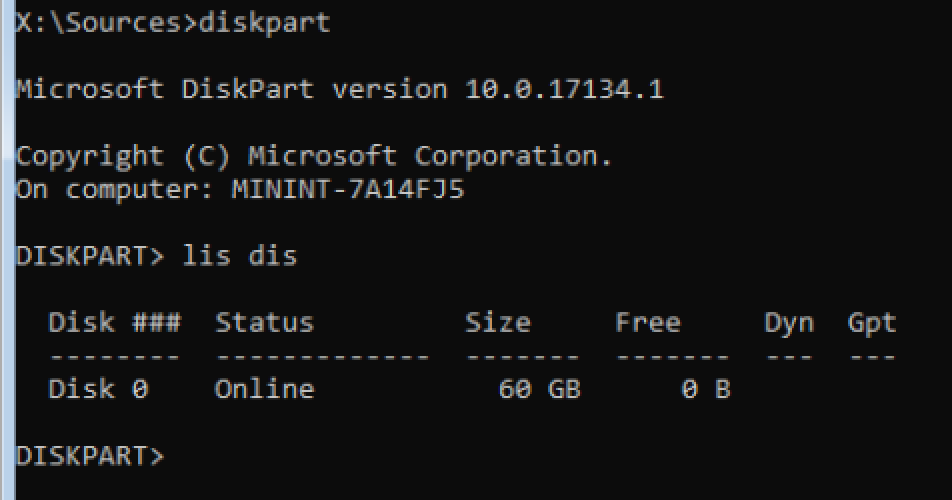
When the options screen comes up select Troubleshoot, and in Advanced Options select Command Prompt. You’ll find yourself at the command prompt in X:\Sources. Change directory to X:\Windows\system32 and start diskpart. Type list disk to list the disks attached to the system and note down the one that contains the OS. This will likely to be disk 0 but may not be depending on your servers’ disk layout.

diskpart List Disk

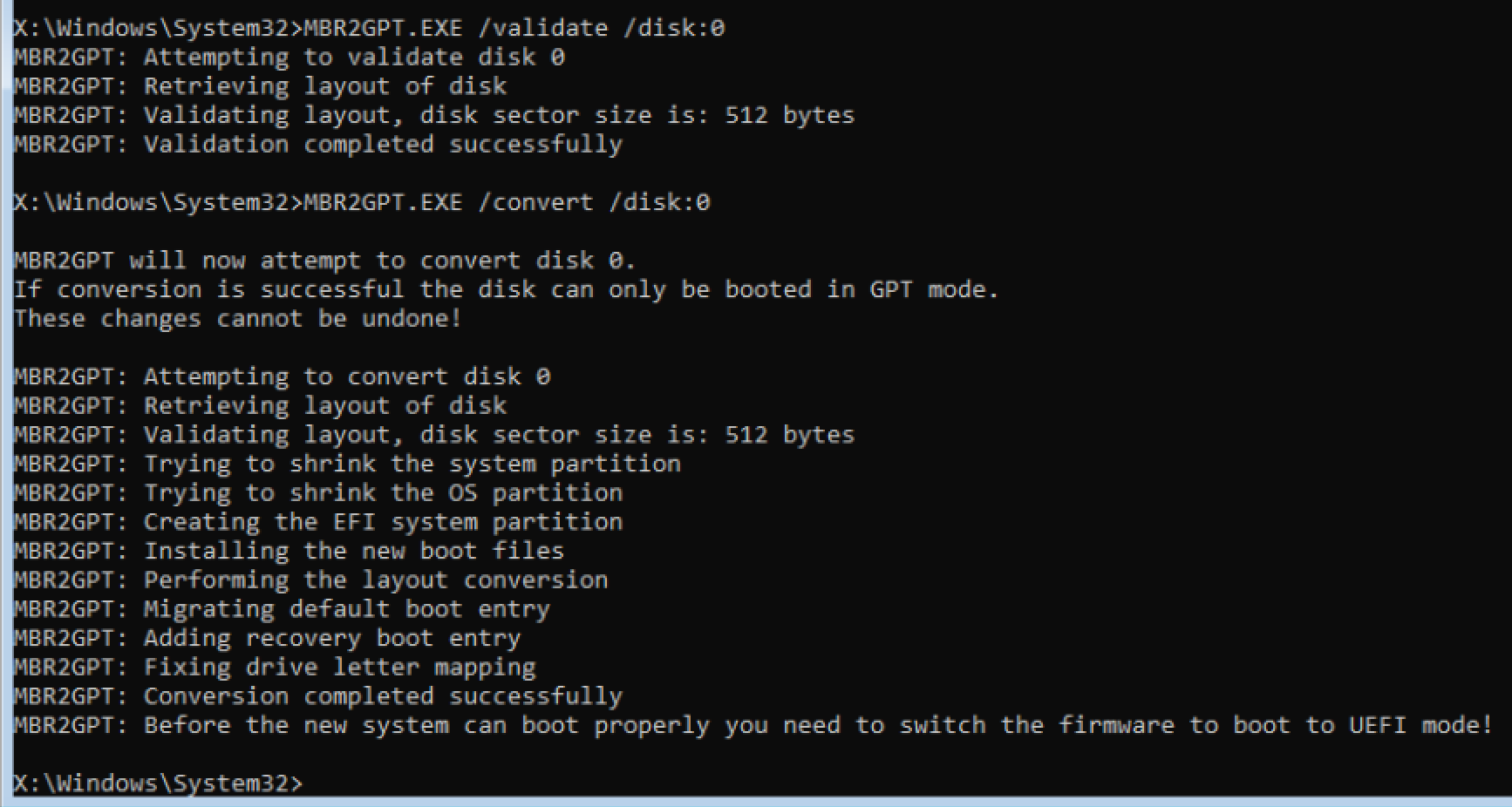
Exit diskpart and type MBR2GPT.exe /validate /disk:0. This will run the MBR2GPT tool on your OS disk to validate that it is ready for the conversion. If it is successful, run MBR2GPT.exe /convert /disk:0 and wait for the conversion to complete – it should not take long.

MBR2GPT Convert

That’s it for the conversion. Now restart your server, enter setup and enable UEFI booting. Save and exit and Windows should boot right up without any issues.

Now there is some optional clean up you can do. How optional it is depends on if you’ll ever want to extend the size of the drive. On a physical server it is unlikely your partition doesn’t already use the full size of the drive, however on a VM where it is possible to increase the size of the disk, you may have need to extend it in the future. It also depends on if you use BitLocker or not – more on that in a moment.

Here’s the deal. In Windows, open a command prompt and start diskpart. Type select disk 0 and then list partition. You will see three partitions – a 500 MB recovery partition, your OS partition and a 100 MB EFI system partition. That 500 MB partition is no longer in use since you no longer have an MBR partition. The new system partition is that 100 MB one at the end, and because it is at the end it will block you extending your OS partition. Fortunately, you can reuse that 500 MB of space and put the EFI system partition there instead.

If you use BitLocker to encrypt your drive the 500 MB partition also contains the unencrypted system files needed to start your computer. In this case, you cannot delete the partition. If you really need to be able to extend your partition in the future you can either unencrypt your drive, move the partition and then re-encrypt it, or use a third-party partitioning tool to move the EFI system partition to the front of the disk.

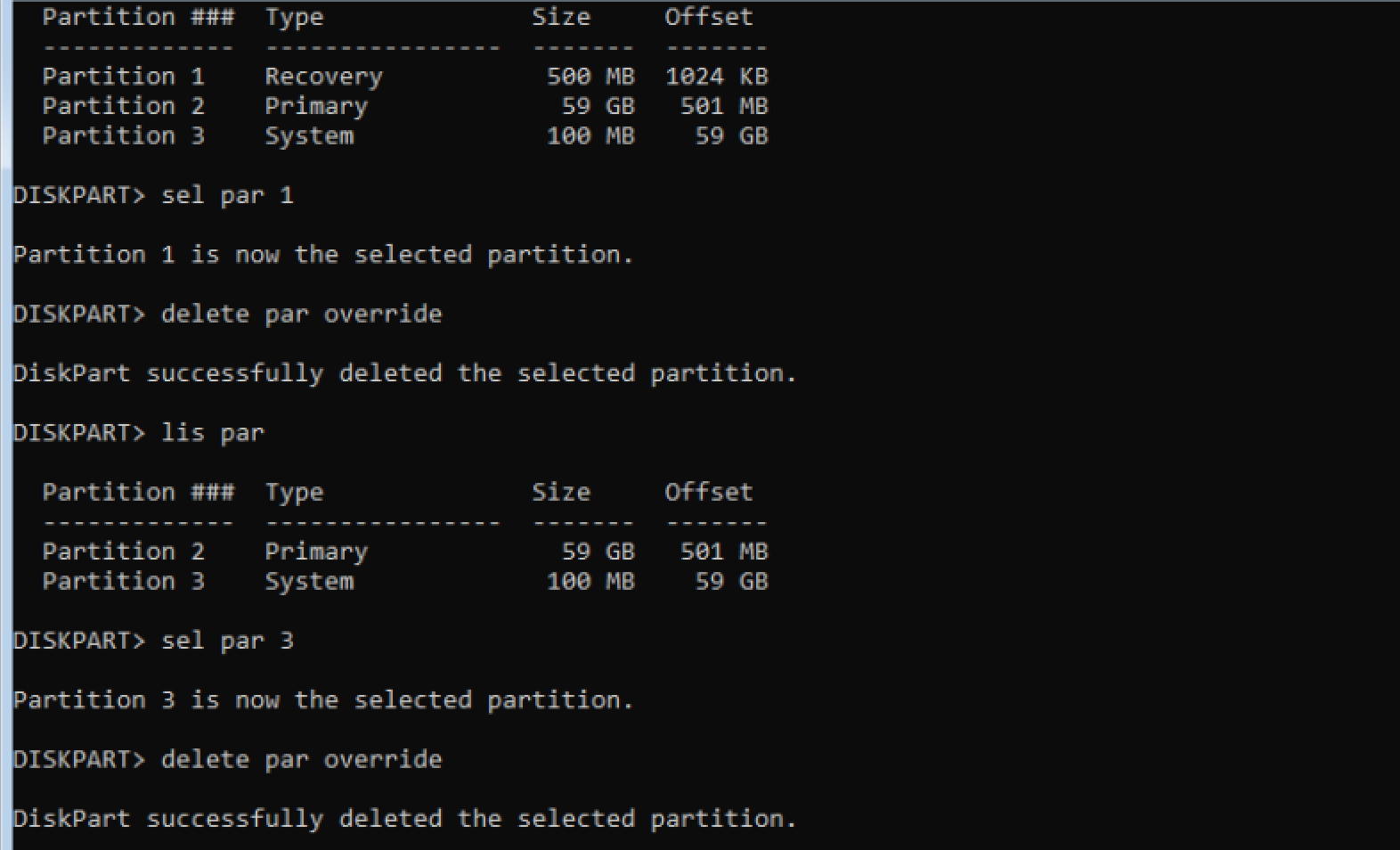
If you want to complete the partition clean up, here’s what to do. First, reboot the server and use the same steps as earlier with your Windows 10 installation media to end up back at the command prompt. From here, enter diskpart and type select disk 0 and then list partition. Note down which partitions are the 500 MB recovery partition and 100 MB system partition (typically these will be partition 1 and partition 3). Proceed to delete these partitions by first selecting them and then deleting them, using the commands select partition 1 followed by delete partition override and then select partition 3 followed by delete partition override.

diskpart Delete Partitions

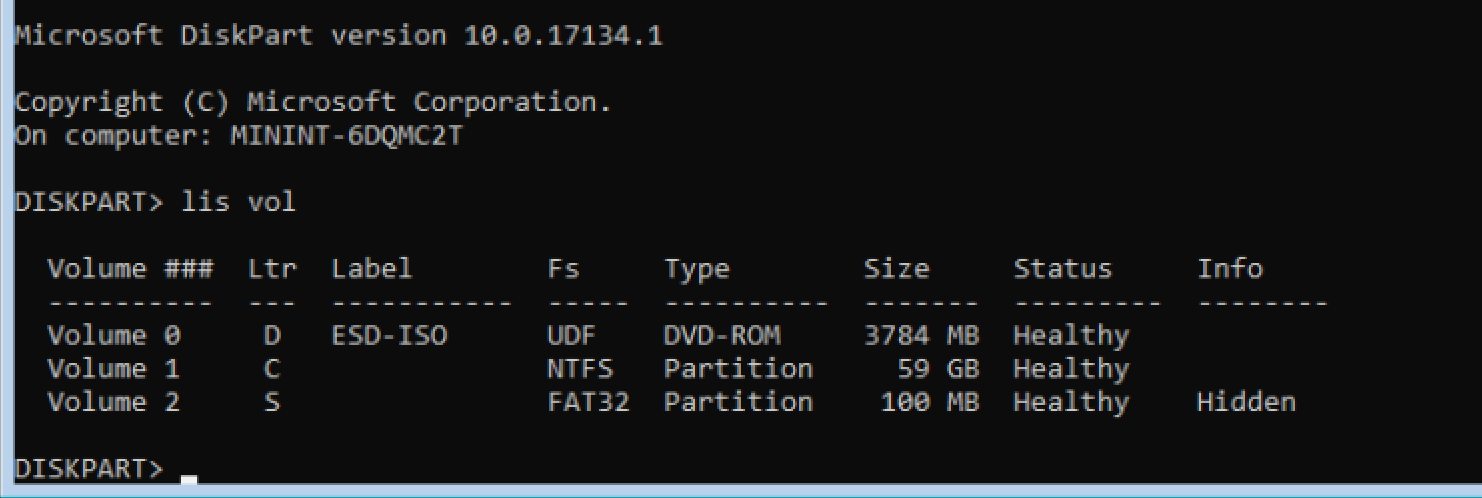
Now create a new EFI system partition at the front of the disk using the command create partition efi size=100, format it using format quick fs=fat32 and assign it a drive letter using assign letter=s. Next, use the list volume command to get a list of volumes and make a note of the drive letter your OS drive is on (very likely C).

diskpartListVolume

Exit diskpart and type bcdboot C:\Windows /s S: to copy the necessary system files to the new EFI system partition.

Finally, enter diskpart one last time, type select disk 0 and then select partition 2 and then type extend to reclaim that 100 MB of space at the end of the drive (may as well, right?) This will leave you with 2 partitions – the 100 MB EFI system partition at the beginning of the drive and your OS partition. Exit diskpart and restart your server.

diskpartExtendPartition

And that’s it, the server now boots with UEFI and the partitions are all tidied up1.

1The astute among you will have realised that actually, the partitions aren’t quite as clean as you might like. Due to the old system partition being 500 MB and the new one being 100 MB, there is now 400 MB of unused space between the system partition and the OS partition. You have a few options here. The first, and simplest, is to actually create the new EFI partition with 500 MB of space rather than 100 MB. It doesn’t need that much space, but it will look better in Disk Management not having that random unused space between the partitions. Your second option is to simply leave it there, which could be beneficial in the future. If you ever turn on BitLocker it will need to create a 350 MB partition to store the unencrypted system files needed to boot your computer, and it can do so inside that 400 MB of space. Your third option is to use a third-party partitioning tool which is capable of extending your OS partition into the space in front of it, which is something that diskpart cannot do.


Buy Me A Coffee

BITS throttling causing slow SCCM client install and policy download

SCCM extensively uses Background Intelligent Transfer Service (BITS) to transfer data between a client and the SCCM server. This also affects downloading client policy! One of the first things that SCCM uses BITS for is to download the client to the machine when you initiate a client push. If BITS is heavily throttled you may find the following entries in your ccmsetup.log file (typically found in C:\Windows\ccmsetup):

Starting BITS download for client deployment files.
Download update: Copy job has been queued.

There may be some entries showing the progress of the client download, however if BITS is throttled this may be proceeding very slowly.

If you want to check whether BITS is being throttled on a particular machine open a command prompt window and type RSoP to perform a Resultant Set of Policy. Once the RSoP window opens navigate to Computer Configuration —> Administrative Template —> Network —> Background Intelligent Transfer Service (BITS) —> Limit the maximum network bandwidth for BITS background transfers and check if it is enabled and what limitations are in place.

In my case it was limited to 10 KBs at all times! Far too slow to get anything done in a reasonable time.

The next thing you can do before you start talking with your fellow sysadmins and the  network team about removing the throttling is to prove that it is the BITS throttling causing the issue. As long as you are a local administrator on one of the clients this can be done quickly by editing one registry key and restarting the Background Intelligent Transfer Service. Open regedit and navigate to HKLM\SOFTWARE\Policies\Microsoft\Windows\BITS and change EnableBitsMaxBandwidth from 1 to 0. Then open services.msc and restart Background Intelligent Transfer Service. This will remove the BITS throttling on that machine until group policy is reapplied and sets EnableBitsMaxBandwidth back to 1. Before that happens however you should have time to re-deploy the SCCM agent or push a new client policy and observe whether or not it happens in a much more timely fashion than it did before.


Buy Me A Coffee

Migrating your Microsoft PKI infrastructure to Windows Server 2016 (Part 2)

Migrating your Microsoft PKI infrastructure to Windows Server 2016 (Part 1)
Migrating your Microsoft PKI infrastructure to Windows Server 2016 (Part 2)

In the second part of this guide I will be migrating my online issuing CA to Windows Server 2016. As before this guide is written as a guide to upgrade from a Windows Server 2012 R2 CA to a Windows Server 2016 CA, however it is equally valid for moving a CA from any older version of Windows server to Windows Server 2016.

The majority of the steps in this guide are identical to the steps for the offline root CA, however there are a few differences as this is a domain joined system and at the end of the guide you will need to re-register any certificate templates you have.

Preparation

Start by building your new Windows Server 2016 server. I recommend again that you give it the same name as your current issuing CA, although it is possible to change it if you are willing to modify some registry keys later on in the process. If you do give this server the same name do not join it to the domain yet. This will be done later in the guide once the existing issuing CA has been removed from the domain. You should also patch the new server with the latest Microsoft patches at this time.

Migration – Backing up your existing issuing CA server

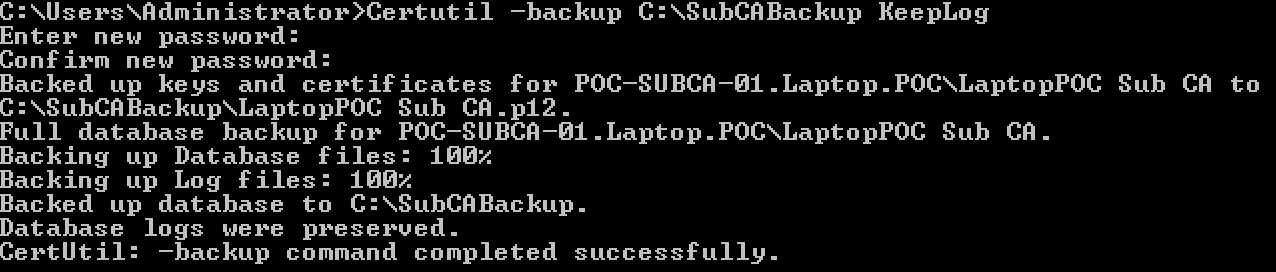
The first step is to back up the CA using the command certutil -backup C:\SubCABackup KeepLog. If you do not care about keeping the logs then you can omit the KeepLog part and instead the logs will be truncated.

You will need to enter a password, remember it and make it complex as this backup contains your issuing CA private key.

backupIssuingCA

The next thing to backup is the CA configuration, which is stored in the registry in the following location: HKEY_LOCAL_MACHINE\SYSTEM\CurrentControlSet\Services\CertSvc. Back it up by typing reg export "HKEY_LOCAL_MACHINE\SYSTEM\CurrentControlSet\Services\CertSvc" C:\SubCABackup\CertSvcRegBackup.reg

backupIssuingCAReg

You now also need to make a record of what certificate templates you have created as these will need to be re-registered on the new CA. The easiest way to do this is to run the command Certutil -catemplates > "C:\SubCABackup\Catemplates.txt". This pipes the output to a file called Catemplates.txt which you can open later to see the names of the templates.

It is also worth backing up your CAPolicy.inf file which you can do easily enough by copying it into the backup folder by typing copy C:\Windows\CAPolicy.inf C:\SubCABackup.

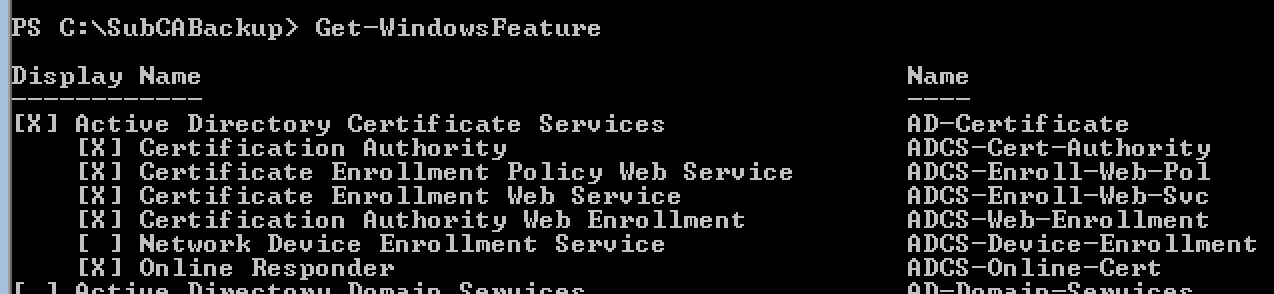
Once you have done the work to backup your existing issuing CA it is time to uninstall the CA role. Before doing this run Get-WindowsFeature in Powershell and have a look at what additional CA features you currently have installed (for example you may have the Web Enrolment service and/or Online Responder roles installed). Make a note of these so that you know what features to install on the new issuing CA server.

windowsFeatures

To uninstall the certificate authority role use the Powershell command Remove-WindowsFeature Adcs-Cert-Authority and press enter. If you did have any additional CA roles installed you may need to remove those first; in my case I had to remove the Web Enrollment service (this was done by running Uninstall-AdcsWebEnrollment).

You will need to restart the server to complete the role uninstall.

It is now important that you copy the SubCABackup folder to your new issuing CA as the next step is to remove the existing issuing CA from the domain and power it down.

To remove the old issuing CA from the domain using Powershell type Remove-Computer HOSTNAME replacing HOSTNAME with the name of your issuing CA. Restart the server to complete the domain removal and then power down the old issuing CA.

Load Active Directory Users and Computer from a management workstation and delete the computer account for the old issuing CA.

Migration – Configuring your new issuing CA and restoring from the backup

Power on your new issuing CA and join it to the domain. You can do this from Powershell by typing in Add-Computer –DomainName yourdomain.com -Credential YOURDOMAIN\Administrator replacing the domain with your domain and the admin account with your admin account. Restart the server to complete the domain join.

Once the reboot has completed you must install the CA role. Do this using Powershell by typing in Add-WindowsFeature ADCS-Cert-Authority and pressing enter. As with the root CA this now needs to be configured using the backup from the old issuing CA, which you do with the following Powershell command:

Install-AdcsCertificationAuthority -CAType EnterpriseSubordinateCA -CertFile "C:\SubCABackup\LaptopPoc Sub CA.p12" -CertFilePassword (Read-Host "Enter password" -AsSecureString)

Replace the value after -CertFile with the path and name of the .p12 file from your issuing CA backup. When you press enter you will be prompted for the password you used to back up your original issuing CA.

If this step is successful you will receive ErrorID 0 as your return code.

Next you need to restore the database and logs. Before you do this the CA service must be stopped. Do that by typing in net stop certsvc and pressing enter. Once it has stopped restore the database and logs using the command certutil -f -restore C:\SubCABackup. The -f forces an overwrite of the data that was configured in the barebones CA setup. Once again you must enter the password you used to backup your original issuing CA.

Before starting the CA service you must import the registry configuration. If you opted to change the name of your issuing CA server you need to go through the C:\SubCABackup\CertSvcRegBackup.reg file and replace and reference to the old server name with your new server name. Once this is done you can import the configuration by typing reg import "C:\SubCABackup\CertSvcRegBackup.reg".

Finish up the restoration process by copying the CAPolicy.inf file back into the Windows directory by using the command copy C:\SubCABackup\CAPolicy.inf C:\Windows

One final thing

There may be one other thing you need to consider before you can start your new issuing CA and that is the location of the web CRL. This is a website that is likely hosted inside your network that contains an up to date certificate revocation list which your issuing CA needs to have access to before it will start. This may not be a problem for you at all if your web CRL is hosted on an separate web server that you did not touch during this migration. However, if like me your web CRL is hosted on your issuing CA, this will have been lost when you decommissioned your previous issuing CA.

To resolve this you will need to install IIS on your new issuing CA and configure a new site to host your CRL. The URL to the CRL must match the previously configured CRL location, so if it used to be accessible via http://PKI.yourdomain.com then it must still be accessible there now. You can find the URL for your CRL by looking at any certificate issued by your CA, going to the Details pane and looking at the CRL Distribution Points field.

Restoring your certificate templates

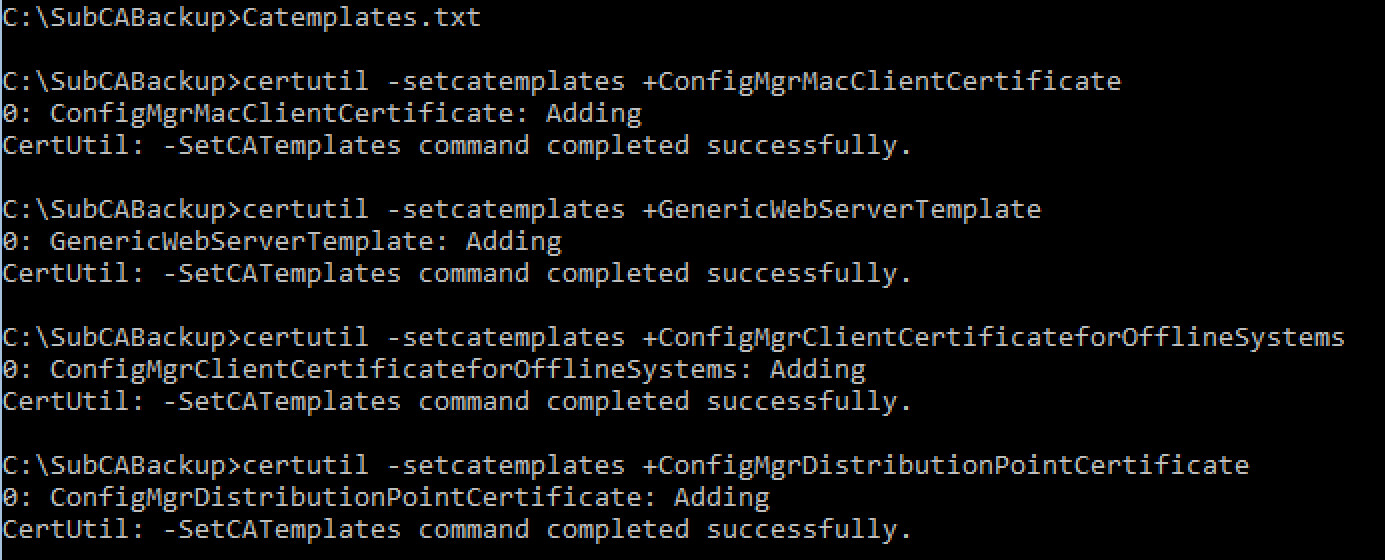
With everything else done you can now start your new issuing CA by typing in net start certsvc. Now you will need to re-register each of the certificate templates you had on your previous issuing CA. Open the Catemplates.txt file you saved by typing notepad Catemplates.txt and use it as a reference for the names for each of your templates. You will need to run the following command for each one:

certutil -setcatemplates +TEMPLATENAME

Replace TEMPLATENAME with the name of your certificate template. Note that + before the template name.

restoreCATemplates

Do this for each of your templates. Once completed all of your templates will be available again and all issuing permissions will be retained.

That completes the process of migrating your issuing CA to a new server. If you have multiple issuing CA servers you will need to repeat this process for each of them. You may also need to reinstall any additional certificate service roles such as Web Enrollment1, which you can do either in Powershell or by using a management workstation with Server Manager. You should make sure you delete the C:\SubCABackup folder so that you don’t leave your issuing CA private key laying around.

1You may encounter error 0x80070057 when reinstalling the Web Enrollment role. If you do, take a look at this blog post: AD: Certification Authority Web Enrollment Configuration Failed 0x80070057 (WIN32: 87)


Buy Me A Coffee

Migrating your Microsoft PKI infrastructure to Windows Server 2016 (Part 1)

Migrating your Microsoft PKI infrastructure to Windows Server 2016 (Part 1)
Migrating your Microsoft PKI infrastructure to Windows Server 2016 (Part 2)

As part of my efforts to upgrade my POC lab to Windows Server 2016 I got around to migrating my PKI infrastructure. This consists of an offline root CA and an online issuing CA. In Part 1 of this guide I will be migrating my offline root CA to Windows Server 2016.

This guide is written as a guide to upgrade from a Windows Server 2012 R2 CA to a Windows Server 2016 CA, however very little has changed since the Windows Server 2003 days and this guide is equally valid for moving a CA from any older version of Windows server to Windows Server 2016.

I am a big advocate of the core versions of Windows Server and in this guide I will be migrating from and to Windows Server core. A CA is a perfect example of a server that does not need the overhead of the GUI and additional services that comes with the full GUI edition of Windows Server and if you don’t already use core for your CA, this is a perfect opportunity to migrate to one!

Preparation

In preparation for the migration build your new Windows Server 2016 server. I recommend that you give it the same name as your current root CA server – it is possible to give it a different name however this will require changing registry keys later on in the migration process. Take this opportunity to patch it with the latest Microsoft patches!

Migration – Backing up your existing root CA server

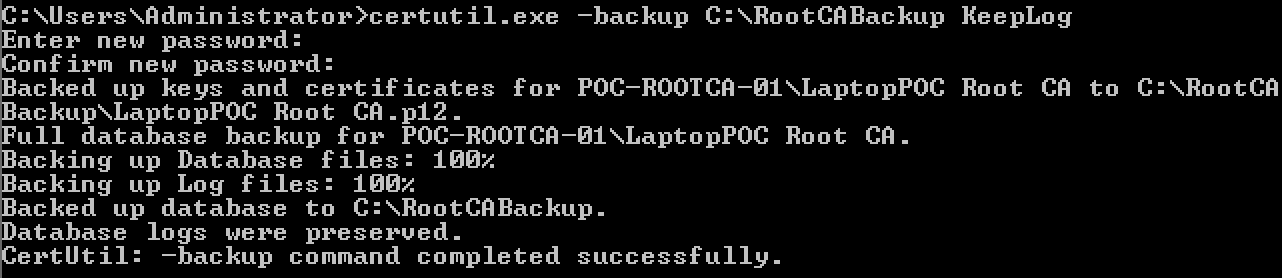
The first step is to back up the CA using the command certutil -backup C:\RootCABackup KeepLog. Note that the KeepLog part is optional, however without it the backup will truncate the logs. I prefer to bring the whole lot across in case the logs are ever needed in the future for auditing purposes.

You will need to enter a password, remember it and make it complex. This backup contains your root CA private key, do not make it easy for an attacker to obtain.

certutilBackup

The next thing to backup is the CA configuration, which is stored in the registry in the following location: HKEY_LOCAL_MACHINE\SYSTEM\CurrentControlSet\Services\CertSvc. Back it up by typing reg export "HKEY_LOCAL_MACHINE\SYSTEM\CurrentControlSet\Services\CertSvc" C:\RootCABackup\CertSvcRegBackup.reg

regBackup

Additionally it is worth backing up your CAPolicy.inf file which you can do easily enough by copying it into the backup folder, by typing copy C:\Windows\CAPolicy.inf C:\RootCABackup

copyPolicy

Finally, copy the RootCABackup folder to your new CA.

Migration – Configuring your new root CA and restoring from the backup

Log on to your new root CA server and start by installing the CA role. The easiest way to do this is with PowerShell, so type powershell into your administrative CMD prompt and enter the following command to install the CA role: Add-WindowsFeature ADCS-Cert-Authority

Now configure this new CA using the backup of the old CA. This can also be done with PowerShell using the following command:

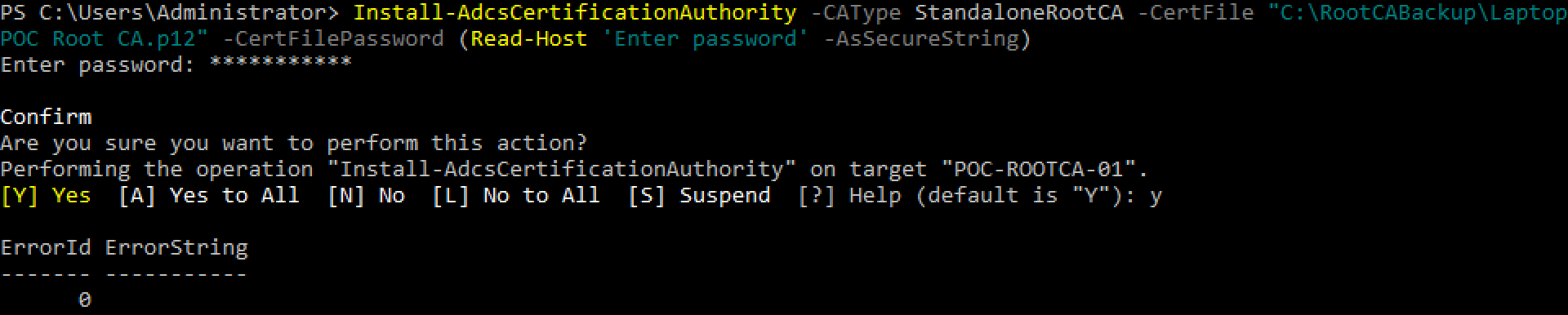
Install-AdcsCertificationAuthority -CAType StandaloneRootCA -CertFile "C:\RootCABackup\LaptopPoc Root CA.p12" -CertFilePassword (Read-Host "Enter password" -AsSecureString)

Replace the value after -CertFile with the path and name of the .p12 file from your root CA backup. When you press enter you will be prompted for the password you used to back up your original root CA.

If this step is successful you will receive ErrorID 0 as your return code.

configureCA

This restores the root CA private key, however next you need to restore the database and logs. Before you do this the CA service must be stopped. Do that by typing in net stop certsvc and pressing enter. Once it has stopped restore the database and logs using the command certutil -f -restore C:\RootCABackup. The -f forces an overwrite of the data that was configured in the barebones CA setup. Once again you must enter the password you used to backup your original root CA.

certutilRestore

Do not start the certificate authority service just yet! Before doing that the registry settings from the previous root CA need to be restored. Do this by typing reg import "C:\RootCABackup\CertSvcRegBackup.reg"

Note: If you chose to change the name of your root CA server you will need to go through the values in this registry file and change any reference to the old server name to your new server name before importing it.

Finally copy the CAPolicy.inf file back into the Windows directory by using the command copy C:\RootCABackup\CAPolicy.inf C:\Windows

Now you can start the root CA by typing net start certsvc. The service should start with out any issues. To verify this you should log on to a management workstation and load the Certificate Authority MMC snap-in, connect to the new server and verify that your issued / revoked certificates are listed (as this is a root CA there should be very few issued certificates!)

Once you are satisfied that the new server is configured correctly and working, make sure that you delete the C:\RootCABackup folder. As previously mentioned, this contains your root CA private key, you do not want to leave that laying around!

Coming soon is Part 2, which will focus on migrating the issuing certificate authority. Thankfully the steps for this are very similar with only small differences due to it being a domain joined server.


Buy Me A Coffee

Error 80070057 when attempting to update Windows Server 2012 R2

Once when I was updating some servers running the version of Windows Server 2012 R2 I encountered something odd; no patches appeared in Software Center or in the Windows Update panel, even though the server was several years out of date and definitely had applicable updates!

In WindowsUpdate.log I found the following error message repeating:

cidimage001

The fix for this is to manually download and install KB2919355, which is the April 2014 update rollup for Windows Server 2012 R2. After this has been installed and the server has restarted, re-run your updates scan and updates will show up in Windows Update or Software Center.


Buy Me A Coffee

Increasing the maximum run time for Windows 10 and Windows Server 2016 cumulative updates

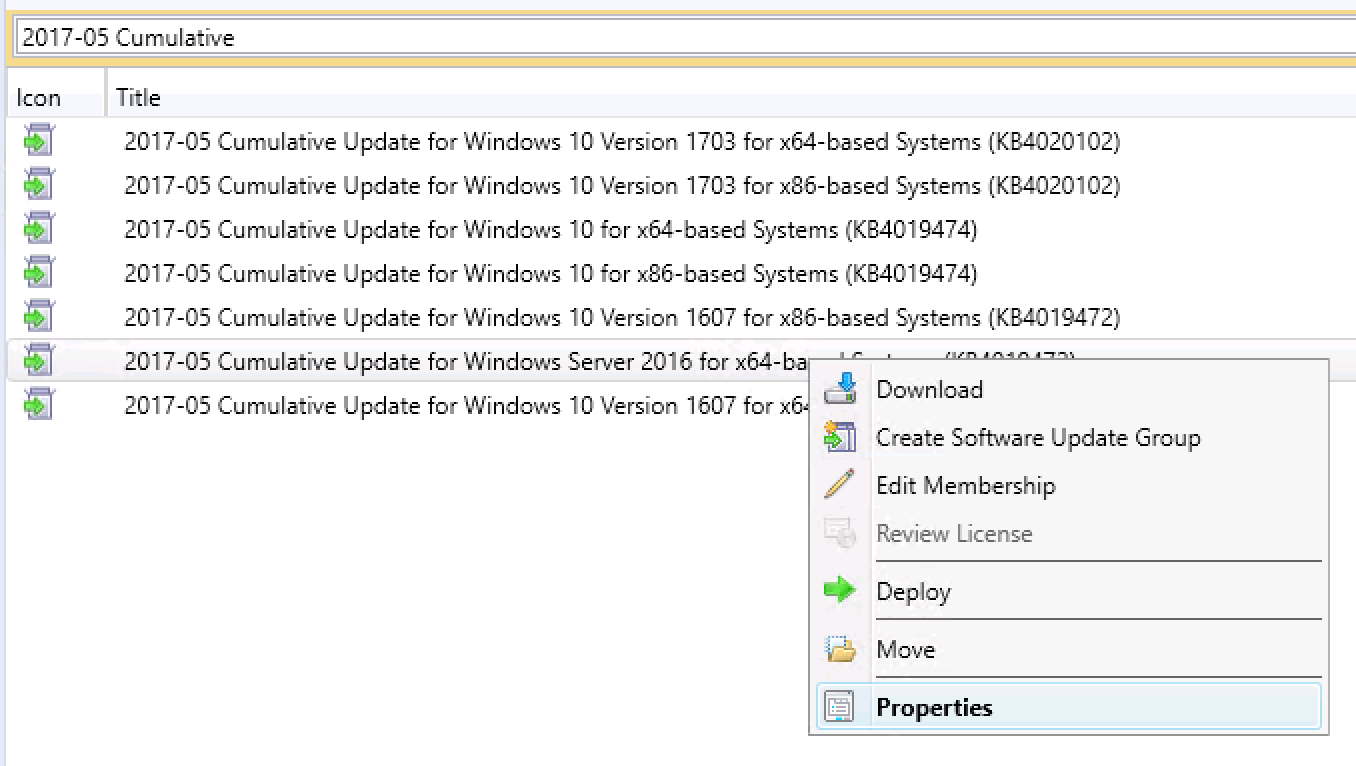
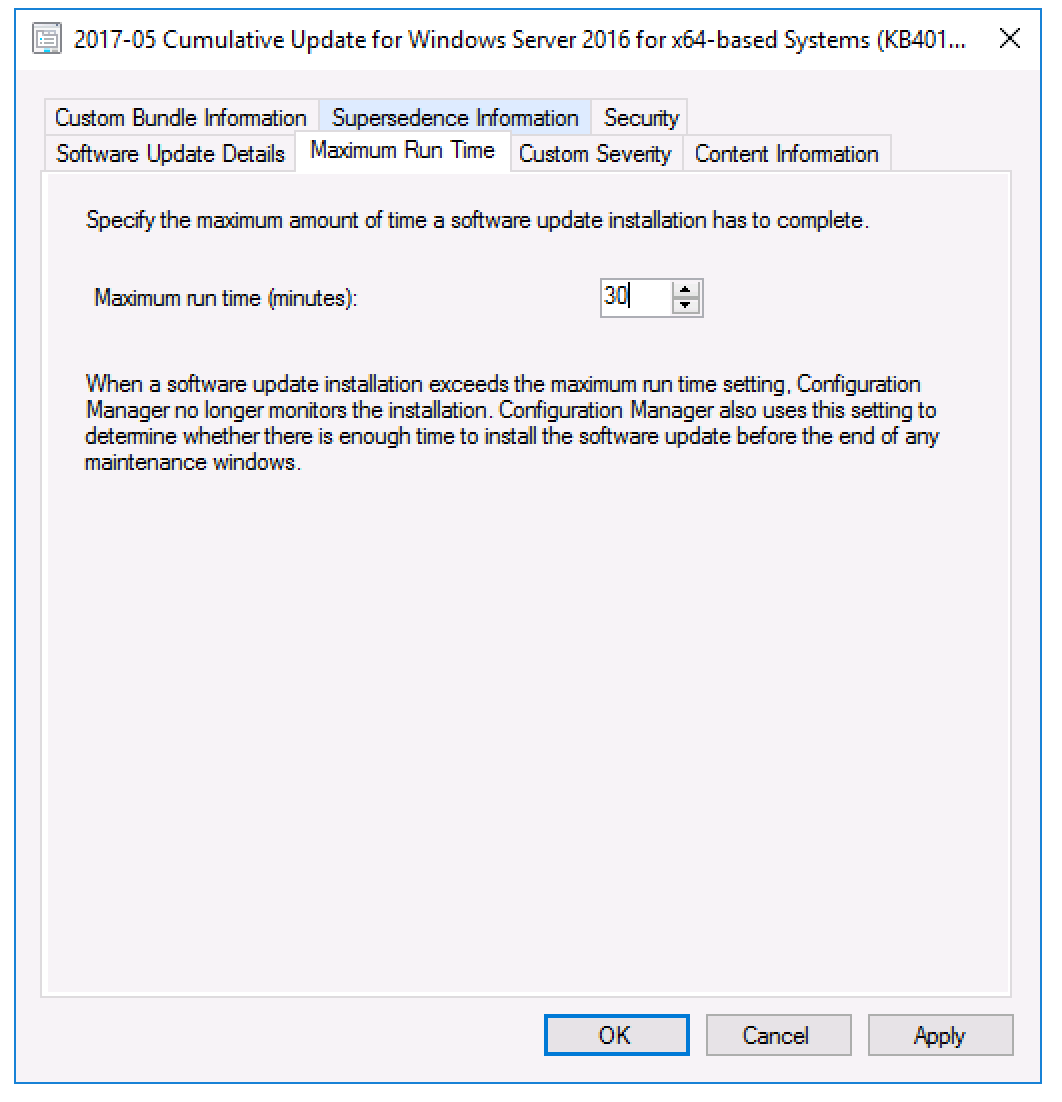
One of the things I have noticed since starting to deploy Windows Server 2016 is that the cumulative updates can fail to install when deployed from SCCM. It starts to run but then times out due to the maximum run time having been reached. By default this is set to 10 minutes. However due to the updates being larger and taking longer to install than updates prior to the cumulative updates era 10 minutes doesn’t seem to be long enough. The fix for this is to simply increase the maximum run time for cumulative updates for both Windows Server 2016 and Windows 10 from 10 minutes to 30 minutes.

Screen Shot 2017-06-05 at 23.12.35

Screen Shot 2017-06-05 at 23.12.47

This is a bit tedious as you’ll have to do it every month for both Windows Server 2016 and every version of Windows 10 you have in your environment. Hopefully Microsoft soon catches on to this and changes the default run time to 30 minutes so that this ceases to be an issue. There is already a Configuration Manager UserVoice entry for this idea, so if you’re reading this, pop over and vote to increase its visibility!


Buy Me A Coffee

The clients that didn’t know they were on the corporate LAN

I recently came across an issue where all of the Windows 10 clients in a particular remote site were unable to access network resources when connected to the local LAN. The strange thing? This LAN was part of the corporate network.

After searching around I found a number of people reporting similar issues with clients configured to use DirectAccess, usually being caused by things such as a corrupt Name Resolution Policy Table (NRPT) or other issues with the DirectAccess configuration. This led me to try exporting the NRPT registry keys from a working client and importing them on one of these clients that was not working. But… that did not fix the problem. And anyway, there were devices in other offices that worked when they were connected to DA and the corporate LAN. This problem was limited to this particular office, so I started to dismiss DirectAccess as being the problem.

A little more troubleshooting and I discovered something else. When connected to the LAN these clients could not ping the IP address of any internal server hostname I tried pinging. Any time I tried to use ping on an internal server I just got back "Ping request could not find host hostname.local. Please check the name and try again." They could be pinged by IP address though. So perhaps a DNS issue? Perhaps not, as I discovered that nslookup did work.

Checking the Application log in Event Viewer I found the following three critical errors repeating every minute or so:

NETLOGON | Event ID 5719
There are currently no logon servers available to service the logon request.

DNS Client Events | Event ID 8015
The system failed to register host (A or AAAA) resource records (RRs) for network adapter
with settings:

The reason the system could not register these RRs was because the update request it sent to the DNS server timed out. The most likely cause of this is that the DNS server authoritative for the name it was attempting to register or update is not running at this time.

Time-Service | Event ID 129
NtpClient was unable to set a domain peer to use as a time source because of discovery error. NtpClient will try again in 15 minutes and double the reattempt interval thereafter. The error was: The entry is not found. (0x800706E1)

This led me to think there was something wrong with these client’s ability to contact DNS, which eventually led me back to DirectAccess. As noted previously, these clients did work when connected via DirectAccess. So, I thought, if I remove the DirectAccess configuration, will that make any difference to this broken-when-on-the-corporate-LAN situation? As I couldn’t just remove the DirectAccess client from the DirectAccess security group (because the client could not contact the domain controller to receive the policy change) I had to find the DirectAccess configuration in the registry and delete it there. It resides under HKLM\Software\Policies\Microsoft\Windows NT\DNSClient\DNSPolicyConfig. I my case there were 4 entries underneath this key, composed of DA-{GUID}. I deleted these keys, restarted the client and found, to my delight, that it was now functioning correctly on the LAN. For good measure I re-added the DirectAccess configuration (this time by simply adding the client back into the DirectAccess security group) and confirmed that with the DirectAccess configuration back in place, the client was broken again on the LAN.

So, what was going on? Eventually the following article from Microsoft led me to the answer: Network Location Detection. This article details the process Windows goes through to determine whether or not it is on the corporate network. When a network adapter status change is detected Windows attempts to access the URL that is stored in the registry key HKEY_LOCAL_MACHINE\Software\Policies\Microsoft\Windows\NetworkConnectivityStatusIndicator\CorporateConnectivity\DomainLocationDeterminationUrl. The URL in this key will have been configured by whoever originally set up DirectAccess in your organisation. If Windows does not receive a valid HTTP response (HTTP status 200 OK) it believes you are not connected to the corporate LAN and attempts to connect to DirectAccess. During this process the entry in the NRPT table that governs what DNS server to use when connected to DirectAccess is used and, because you are not actually connected to DirectAccess, name resolution problems start to occur.

What about a fix? Why couldn’t the client access the network location detection URL? This goes back to the way DirectAccess is configured. Best practise states that your DirectAccess servers should have two network adapters; one internal and one external. Only the external adapter should be configured with a default gateway to prevent routing issues. Internal routing has to be done via static routes.

And that was the key. This was a small remote site that had only recently been connected to the corporate network and there was no static route between the DirectAccess server and the IP subnet being used by this site. After hours of investigating, this issue was resolved in a single moment by issuing the following PowerShell command:

New-NetRoute -InterfaceAlias InternalAdapterName -DestinationPrefix Subnet/Mask -NextHop GatewayAddress

I went back to my broken client, opened my browser and entered the network location detection URL and was presented with the Microsoft IIS splash page. I restarted all the clients onsite and they correctly detected that they were on the corporate LAN.